How do you import brushes into Procreate?
Short answer
Importing brushes into Procreate is a straightforward process involving the Files app or a direct tap on a compatible file. You can import individual brushes or entire brush sets by selecting the ".brush" or ".brushset" file format. Once imported, your new tools appear in the Procreate Brush Library for immediate use.
On this page
How to import brushes into Procreate
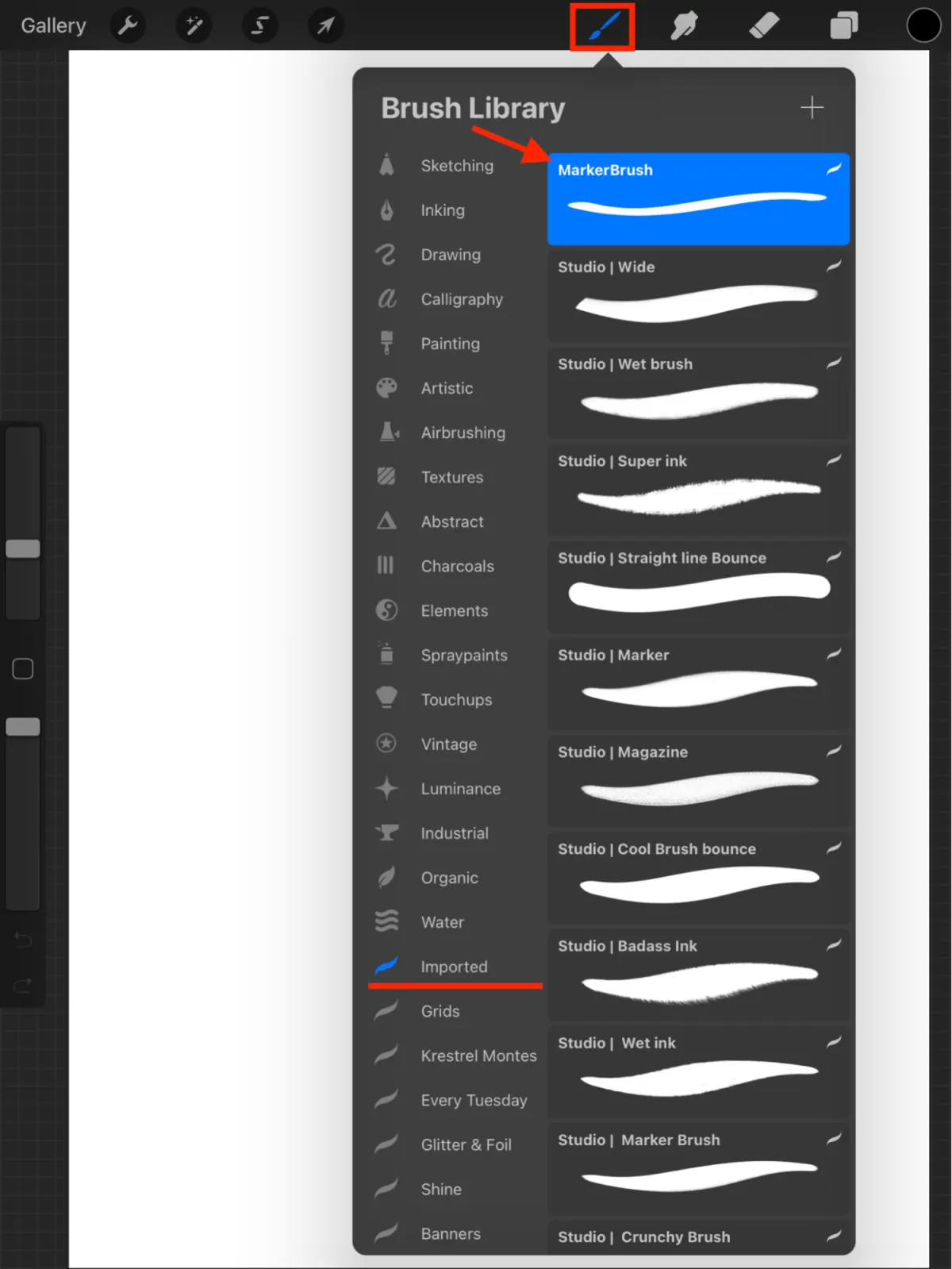
To add new brushes to your collection, you must first ensure your files are saved in a location accessible by your iPad, such as iCloud Drive or the local "On My iPad" folder. Open the Procreate app and navigate to the Brush Library by tapping the paintbrush icon in the top right corner of the canvas. Scroll to the top of your brush sets list and tap the plus (+) icon to create a new category, or select an existing one to house your new tools.
Once you are inside the desired folder, tap the "Import" button located at the top of the brush menu. This action opens the iPad Files interface, allowing you to browse your storage for your downloaded brush files. Simply tap the file you wish to add, and Procreate will automatically install it into your library. If you are importing a ".brushset" file, the entire collection will appear as a new group, whereas a single ".brush" file will be added to the folder you currently have open.
How to use drag and drop for brushes
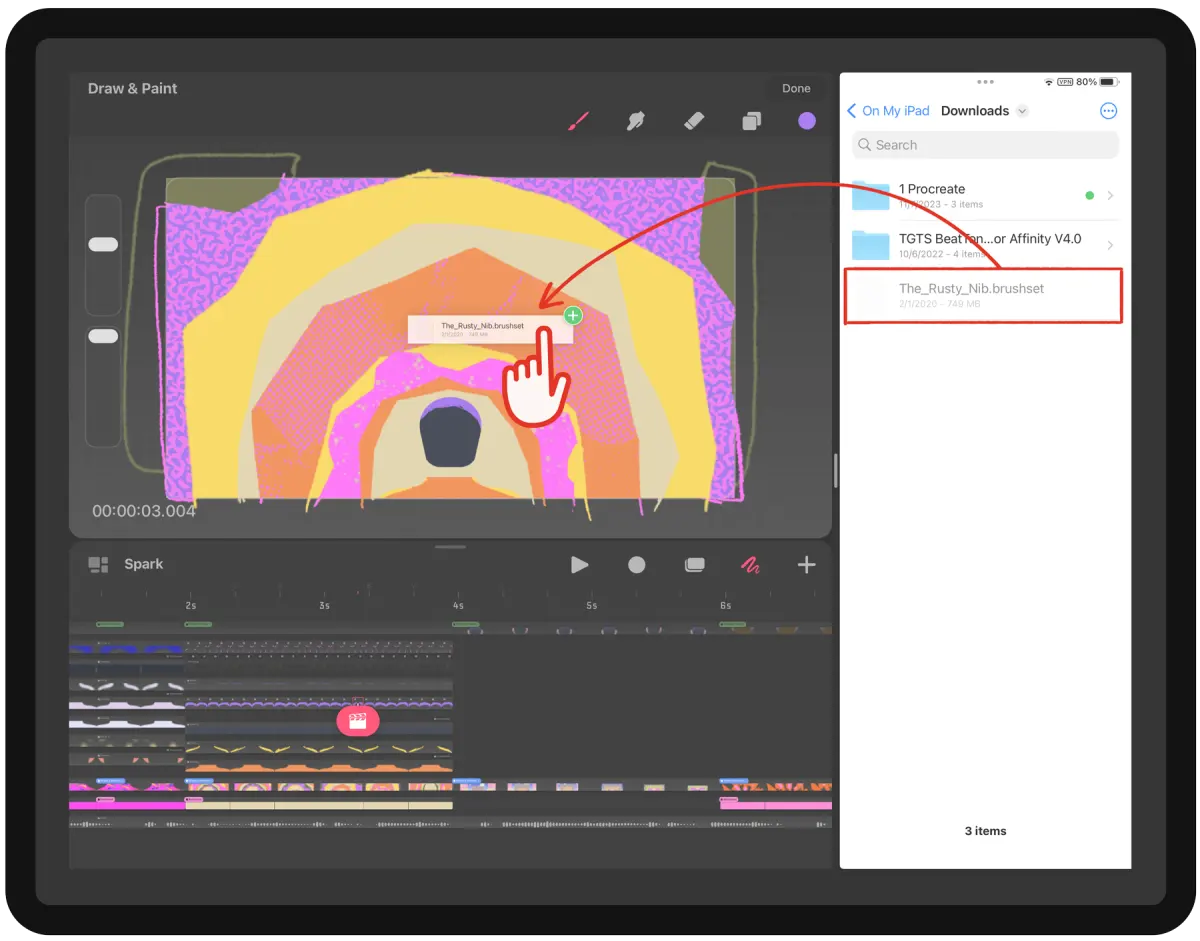
The drag and drop method provides a faster way to move multiple files into the application simultaneously. First, open the Files app and Procreate in Split View or Slide Over mode so that both are visible on your screen. Navigate to the folder containing your brush files in the Files app. Select the brushes you want to import by tapping and holding one, then dragging it over to the Procreate interface.
This technique is particularly useful when you have downloaded a large bundle of brushes that need to be organized into specific categories. You can drag individual files or select multiple items at once to batch-import them into your library. Once you release the files over the Procreate brush menu, the app will process the data and display the new brushes instantly. This workflow is highly efficient for artists who frequently update their digital toolkit with new assets from online marketplaces or creative communities.
How to organize imported brushes
After importing your brushes, you may find that your library becomes cluttered if you do not manage your files properly. You can rename any imported brush set by tapping on the set name and selecting "Rename" from the menu that appears. To move a brush, tap and hold it until it lifts, then drag it to a different brush set within the library. You can also delete unwanted brushes by swiping left on the brush name and selecting "Delete."
- Tap the brush set name to reveal the options menu.
- Select "Rename" to give your collection a descriptive title.
- Drag and drop brushes between folders to group them by style or function.
- Swipe left on an individual brush to duplicate or delete it.
- Use the "Share" option to export your custom brushes for backup or distribution.
Why brushes fail to import
Sometimes, a brush file may fail to import, which is usually due to compatibility issues or file corruption. Procreate only supports files with the ".brush" or ".brushset" extensions. If you have downloaded a compressed file, such as a ".zip" or ".rar" archive, you must extract the contents using the Files app before the individual brush files will be recognized by the software. Always ensure that your Procreate app is updated to the latest version, as older versions may not support newer brush formats.
Another common issue involves the source of the file. If a file was created in a different software, such as Adobe Photoshop, it will not function in Procreate unless it has been specifically converted to the Procreate format. If the file appears greyed out or cannot be selected in the Files app, the file is likely incompatible. Verify that you have downloaded the correct version of the brush pack intended for the iPad version of Procreate rather than the desktop counterpart.
Common mistakes when importing brushes
One of the most frequent errors users make is attempting to import brushes directly from a web browser without saving them to the Files app first. While some browsers allow you to "Open in Procreate," this can sometimes lead to incomplete transfers or errors. It is always safer to download the file to your device storage and then use the import function within the app. This ensures the file is fully downloaded and accessible to the operating system.
Another mistake is forgetting to back up your custom brushes. If you delete the app or reset your device, your imported brushes will be lost unless you have exported them to an external drive or cloud storage. Regularly export your favorite brush sets as ".brushset" files to keep them safe. By maintaining a clean, organized, and backed-up library, you ensure that your creative workflow remains uninterrupted and that your hard-earned digital assets are always ready for your next project.
Key facts
- Procreate exclusively supports files with the .brush or .brushset extension.
- You can import brushes directly from the Files app, Safari, or cloud storage services like Dropbox and Google Drive.
- Tapping a .brushset file automatically imports the entire collection into your brush library.
- Dragging and dropping a file from the Files app into the Procreate brush menu is the fastest import method on iPad.
- Imported brushes appear in a new folder at the top of your brush library by default.
- You can organize your workspace by dragging and dropping imported brushes into existing folders or creating new ones.
The bottom line
Importing brushes into Procreate is a straightforward process that allows artists to expand their digital toolkit significantly. By ensuring your files are in the correct .brush or .brushset format, you can easily move them from cloud storage or local files directly into the app. Proper organization within your library ensures that your workflow remains efficient, helping you access your favorite tools quickly during your creative process.
People also ask
Can I import Photoshop brushes into Procreate?
Yes, Procreate supports .abr files. When you import an .abr file, Procreate converts the Photoshop brush format into its own native brush engine.
Why are my imported brushes not showing up?
Ensure the file extension is correct and that you have tapped the file while Procreate is open. If the file is zipped, you must unzip it in the Files app before importing.
Is there a limit to how many brushes I can import?
There is no hard limit on the number of brushes, but having thousands may impact app performance. It is best to organize them into sets to maintain speed.
Can I share my custom brushes with others?
You can export any brush or brush set by swiping left on it in the menu and selecting Share. This creates a file you can send via AirDrop, email, or cloud storage.
Do I need a paid subscription to use custom brushes?
No, Procreate is a one-time purchase, and all features including custom brush importing are included at no extra cost. Third-party brushes may require a purchase from the creator.
Can I import brushes on an iPhone?
Yes, the process for Procreate Pocket is identical to the iPad version. Use the share sheet in your Files app to select "Copy to Procreate" to finalize the import.
This answer was created with the help of AI research tools and reference sources. Spotted an error? Let us know — we correct mistakes quickly. See our editorial policy.