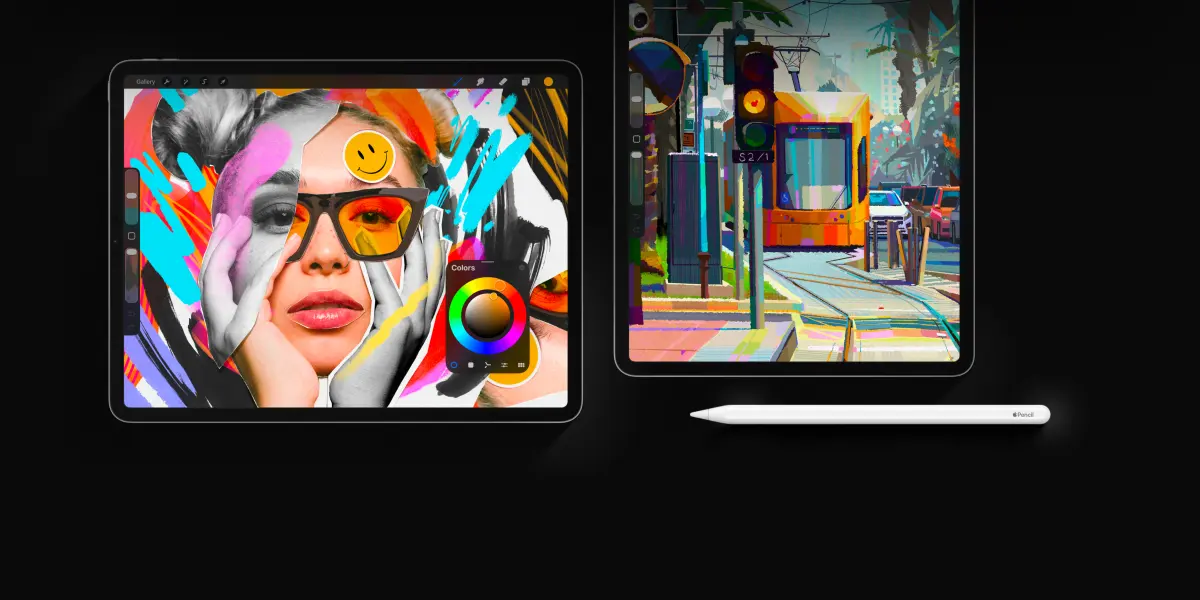
Is Procreate worth it?
Short answer
Procreate is widely considered worth the investment for any iPad user interested in digital art. At a one-time cost of $12.99, it offers a professional-grade feature set that rivals expensive desktop software. Its intuitive interface, robust brush engine, and lack of subscription fees make it the industry standard for mobile illustration.
On this page
Is Procreate worth the price?
Procreate is a one-time purchase of $12.99, which is exceptionally affordable compared to subscription-based alternatives like Adobe Photoshop. Since its release by Savage Interactive in 2011, the app has remained a leader in the digital art space by avoiding recurring monthly fees. This pricing model allows hobbyists and professionals alike to access a full suite of creative tools without the long-term financial burden of a subscription.
The value proposition is further bolstered by the frequency of free updates. Savage Interactive regularly releases significant feature patches that introduce new blending modes, animation tools, and text capabilities. Users who purchase the app once receive these enhancements for the life of the software on their device. For anyone already owning a compatible iPad and an Apple Pencil, the app provides the highest return on investment for digital illustration tools currently available on the market.
How to get started with Procreate
Getting started with Procreate requires a compatible iPad and an Apple Pencil, as the app is optimized for pressure sensitivity and tilt recognition. Once you download the app from the App Store, you should familiarize yourself with the gesture-based interface. Most actions, such as undoing a stroke or clearing a layer, are performed with simple finger taps or swipes rather than navigating through complex menus.
- Open the app and tap the plus icon in the top right to create a new canvas.
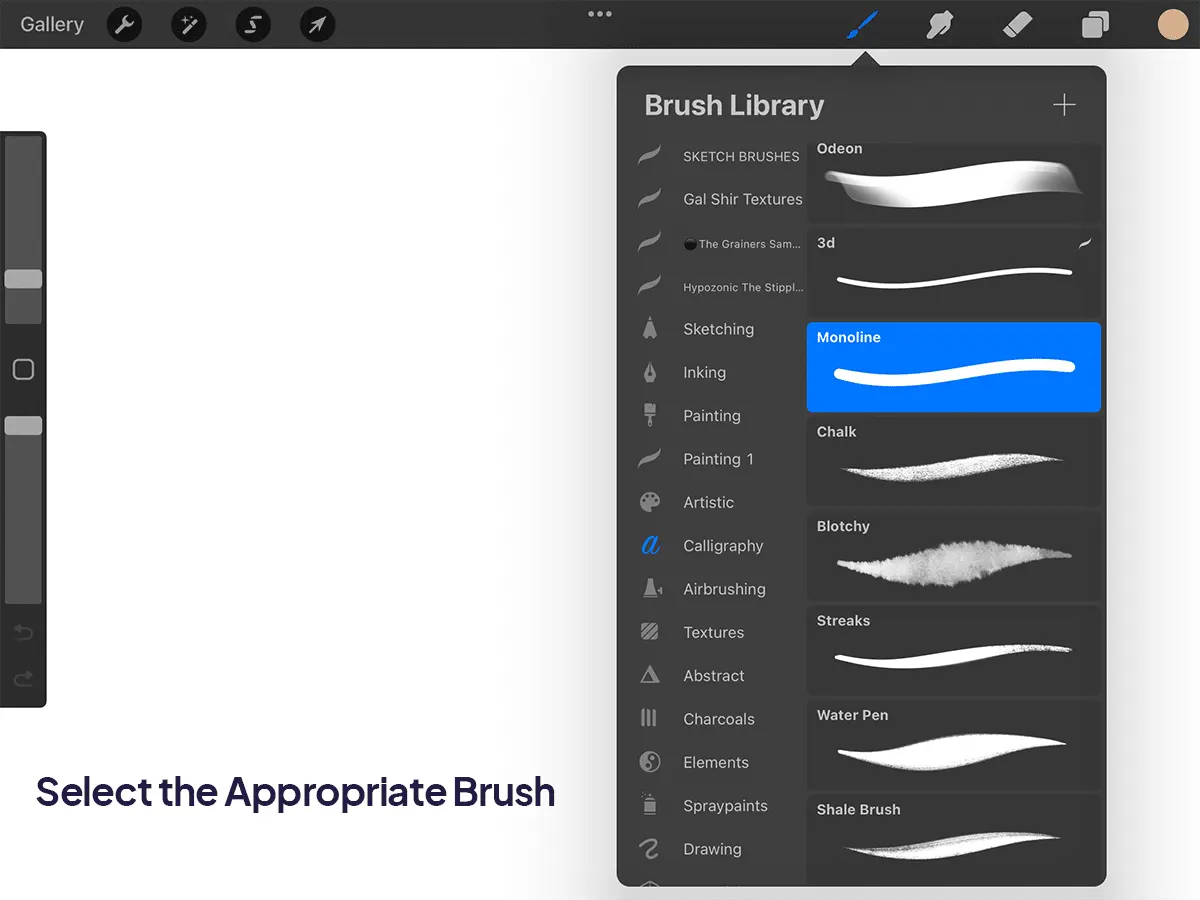
- Select a brush from the library to test the pressure sensitivity.
- Use two fingers to tap the screen to undo your last action.
- Use three fingers to tap the screen to redo an action.
- Pinch your fingers together on the canvas to zoom in or out.
Following these steps ensures that you master the basic workflow before attempting complex illustrations. Focusing on these gestures early will significantly increase your speed and efficiency as you progress to more advanced projects.
What are the best features for beginners?
The app includes several powerful features that simplify the learning curve for new artists. The "QuickShape" tool is particularly helpful, as it automatically snaps hand-drawn lines into perfect circles, squares, or polygons. This allows beginners to create clean, geometric structures without needing advanced drafting skills. Additionally, the "Layer" system allows you to separate your sketch, line work, and color, which prevents the common mistake of damaging your underlying work while adding details.
Another essential feature is the "Brush Library," which contains hundreds of presets ranging from charcoal and ink to oil paint and airbrushes. Beginners can experiment with these textures to find a style that suits them without needing to purchase physical art supplies. The "Color Drop" feature also allows you to fill enclosed areas with color instantly by dragging the color circle onto the canvas. These tools collectively lower the barrier to entry for digital painting.
Common mistakes when using Procreate
One of the most frequent mistakes beginners make is failing to manage their layer count. Each canvas has a maximum layer limit based on the iPad's hardware specifications and the resolution of the document. If you create too many layers, the app will prevent you from adding more, forcing you to merge layers together. It is best practice to merge completed sections of your work periodically to free up memory and maintain performance.
Another common error is working at a low resolution. Before starting a project, ensure your canvas is set to at least 300 DPI if you intend to print your work. If you create a piece at 72 DPI and later decide to print it, the image will appear pixelated and blurry. Always check your canvas dimensions and resolution in the "Canvas Information" menu before beginning a large-scale illustration to avoid irreversible quality loss later in the process.
Why Procreate is better than desktop software
Procreate excels because it is built exclusively for the iPad, meaning it utilizes the hardware's touch interface more effectively than desktop programs ported to tablets. The app is remarkably fast, with almost zero latency when using the Apple Pencil. This responsiveness creates a tactile experience that mimics traditional media, which is often lost in desktop software that relies on mouse or tablet peripheral inputs.
- Portability: You can carry your entire studio in a small bag.
- Offline access: The app functions perfectly without an internet connection.
- Interface: The minimalist UI keeps the focus on the artwork.
- Export options: Easily save files as PSD, PNG, JPEG, or TIFF.
Because the software is not tethered to a cloud subscription, you retain full control over your files and workflow. This independence, combined with the power of modern iPad processors, makes Procreate a superior choice for artists who prioritize mobility and a distraction-free environment. It remains the most practical tool for creators who want to produce high-quality work without the overhead of complex desktop environments.
Key facts
- Procreate is a one-time purchase of $12.99, requiring no ongoing subscription fees.
- The software is exclusive to iPadOS and requires an Apple Pencil for pressure sensitivity.
- It supports high-resolution canvases up to 16k by 4k pixels on newer iPad models.
- Users can export files in native .procreate, PSD, TIFF, PNG, PDF, and JPEG formats.
- The app features a robust brush engine with over 200 customizable brush presets.
- Time-lapse recording is built-in, automatically capturing every stroke for social media sharing.
The bottom line
Procreate is widely considered the industry standard for digital illustration on tablets due to its intuitive interface and affordable one-time pricing model. By removing the burden of monthly subscriptions, it offers immense value for both hobbyists and professional artists. If you already own a compatible iPad and an Apple Pencil, the software is an essential investment that provides a professional-grade creative suite for a minimal cost.
People also ask
Can I use Procreate on a Windows PC or Android tablet?
No, Procreate is developed exclusively for iPadOS. There are no official versions for Windows, Android, or macOS.
Does Procreate support layers and blending modes?
Yes, the app supports a high number of layers, limited only by the iPad's available RAM and canvas size. It includes standard industry blending modes like Multiply, Screen, and Overlay.
Is Procreate suitable for professional graphic design work?
While it is a powerful illustration tool, it lacks vector-based features found in software like Adobe Illustrator. Many professionals use it for sketching and painting before moving files to desktop software for final layout.
What is the most common mistake beginners make in Procreate?
Beginners often work on a single layer, which makes editing specific elements impossible later. Always organize your artwork into separate layers for line work, colors, and backgrounds.
How do I transfer my Procreate files to a computer?
You can export files directly through the Files app, AirDrop them to a Mac, or upload them to cloud storage services like iCloud or Google Drive. PSD export is recommended for seamless transitions to Adobe Photoshop.
Does the app require a constant internet connection?
Procreate is a local application and does not require an internet connection to function. You can create, edit, and save your work entirely offline.
This answer was created with the help of AI research tools and reference sources. Spotted an error? Let us know — we correct mistakes quickly. See our editorial policy.