How do you change canvas size in Procreate?
Short answer
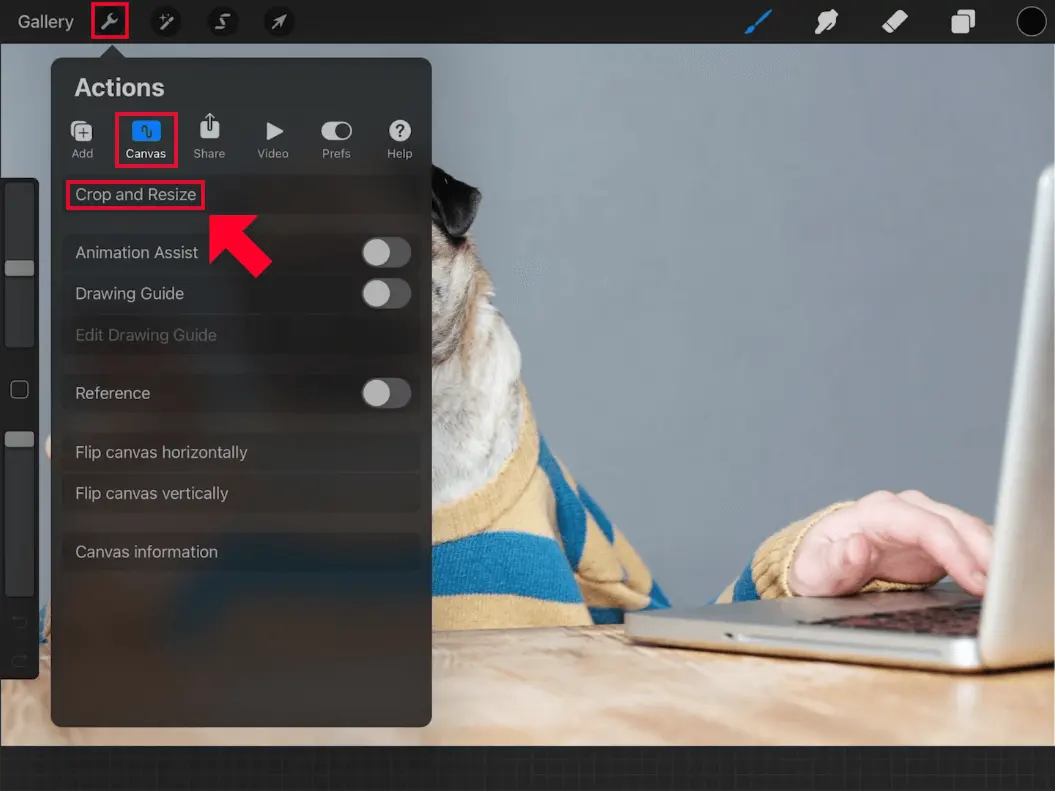
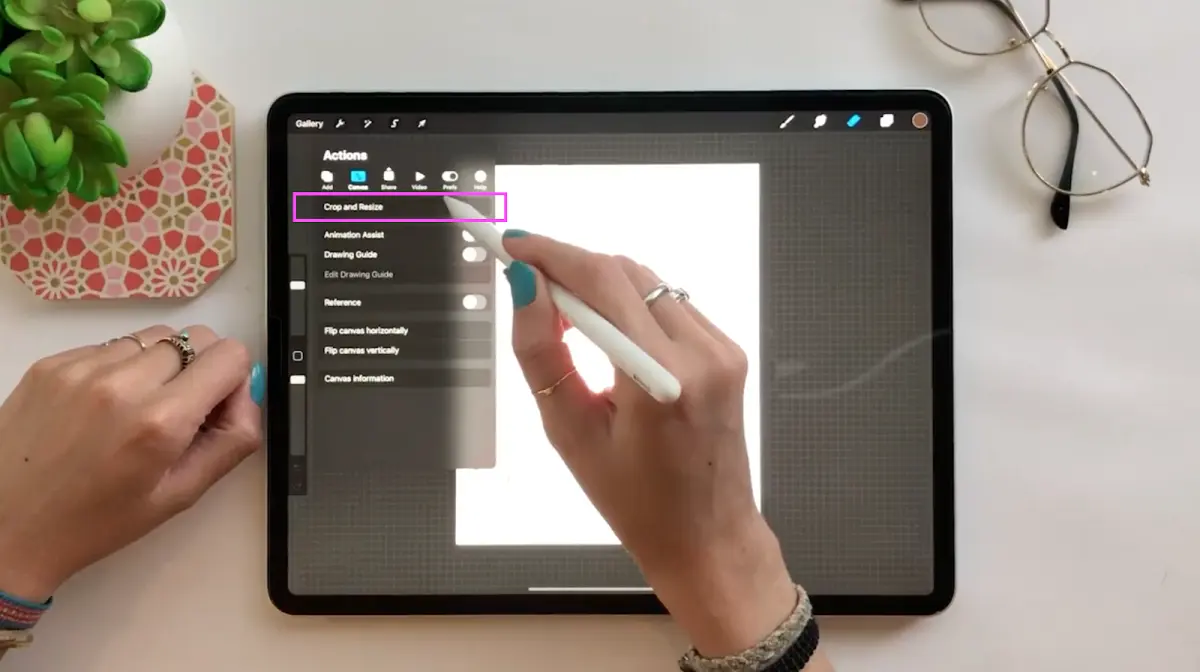
To change the canvas size in Procreate, tap the Actions menu (wrench icon), select the Canvas tab, and choose Crop & Resize. You can then manually drag the handles, input specific pixel dimensions in the Settings menu, or use the Resample toggle to determine if your existing artwork scales with the new boundaries.
On this page
How to resize canvas in Procreate
Changing your canvas dimensions is a fundamental task for artists who need to adjust their workspace after beginning a project. To access this feature, open your artwork and tap the wrench icon in the top-left corner to open the Actions menu. From there, select the Canvas tab and tap Crop & Resize. This will activate a bounding box around your current canvas that you can manipulate by dragging the blue nodes at the corners or the edges.
If you require precise dimensions rather than free-form adjustments, tap the Settings button within the Crop & Resize interface. Here, you can enter exact pixel, inch, or millimeter values for the width and height. Note that changing these numbers will update the canvas boundaries immediately. Once you have set your desired dimensions, tap Done to apply the changes to your project.
How to crop and resize artwork
Cropping allows you to trim away unwanted areas of your canvas or expand the workspace to add more elements. When you are in the Crop & Resize mode, you can simply drag the edges of the canvas inward to remove parts of your image. If you drag the edges outward, Procreate will create additional transparent space around your existing artwork, which is useful for adding borders or extending a background.
There are two primary ways to manage your visual content during this process:
- Resample: When this is toggled on, Procreate will stretch or shrink your existing artwork to fit the new canvas size.
- Snapping: Enabling this feature helps you align the canvas edges perfectly with your artwork or specific grid lines.
- Reset: If you make a mistake, the Reset button will revert the canvas to its original dimensions before you commit to the changes.
Why canvas size affects image quality
The relationship between canvas size and image quality is governed by pixel density, often measured in dots per inch (DPI). When you increase the size of an existing canvas using the Resample option, Procreate must mathematically calculate new pixels to fill the added space. This process, known as interpolation, can lead to a loss of sharpness or a pixelated appearance if the canvas is enlarged significantly beyond its original resolution.
Conversely, shrinking a canvas via resampling forces the software to discard pixel data. While this often results in a cleaner look, it permanently removes the high-resolution details of your original work. If you plan on printing your art, it is generally best to set a high DPI, such as 300, at the very beginning of your project. Adjusting the canvas size after the fact is a useful tool, but it is rarely a substitute for planning your resolution requirements during the initial setup.
Common mistakes when changing canvas size
One of the most frequent errors users make is forgetting to check the Resample toggle before confirming their changes. If Resample is off, resizing the canvas only changes the workspace boundaries, effectively cropping or padding the image without altering the artwork itself. If it is on, the entire image scales, which might distort your proportions or blur your lines if you are not careful. Always verify this setting to ensure you are modifying the canvas in the way you intend.
Another mistake involves ignoring the maximum layer limit. Procreate limits the number of layers available based on the total pixel dimensions of your canvas and the device's available RAM. If you increase the canvas size significantly, you may find that your layer limit drops, preventing you from adding more detail. Before resizing to a much larger format, check the Layer panel to see if your current layer count will be supported or if you need to merge layers to compensate for the hardware constraints.
Best practices for canvas management
To maintain a professional workflow, always save a duplicate of your artwork before performing major canvas adjustments. This provides a safety net if the resizing process results in unwanted distortion or quality loss. Additionally, consider using the Gallery to check your canvas metadata, which displays the current dimensions and DPI. Keeping track of these specifications ensures consistency across your portfolio, especially when preparing files for specific digital displays or physical print requirements.
Follow these steps to ensure your canvas settings remain optimal:
- Always define your DPI at 300 if you intend to print your work later.
- Use the standard screen size preset if you are creating art exclusively for digital viewing.
- Check the color profile settings alongside your dimensions to ensure your color accuracy remains consistent.
- Avoid repeated resizing, as each transformation cycle can incrementally degrade the sharpness of your digital brushstrokes and textures.
By following these guidelines, you can effectively manage your creative space while preserving the integrity of your artistic vision throughout the entire production process.
Key facts
- Procreate uses a non-destructive cropping tool to adjust canvas dimensions without losing existing layer data.
- The "Crop & Resize" menu allows you to input exact pixel, inch, or centimeter dimensions for precise control.
- Changing the canvas size may reduce the maximum number of available layers depending on your iPad's RAM.
- You can use the "Resample" toggle to stretch or shrink your existing artwork to fit new dimensions.
- DPI (dots per inch) settings can be adjusted within the same menu to ensure print quality.
- Always check your orientation settings, as changing dimensions can sometimes flip or rotate your canvas unexpectedly.
The bottom line
To change your canvas size in Procreate, navigate to the Actions menu, select the Canvas tab, and tap Crop & Resize. Input your desired dimensions or drag the handles to adjust the workspace manually. Be mindful of the Resample toggle, as enabling it modifies your existing artwork. Always monitor your layer count, as larger dimensions may limit the total number of layers available for your project.
People also ask
Does changing the canvas size affect the quality of my artwork?
If you only crop the canvas, the quality remains unchanged. However, if you use the Resample feature to enlarge your work, you may experience pixelation or blurriness.
Can I change the canvas size after I have already started painting?
Yes, you can modify the canvas dimensions at any point in your project. Procreate will automatically adjust the workspace to your new specifications.
What is the difference between cropping and resizing?
Cropping removes or adds empty space around your artwork without altering the scale of your drawing. Resizing with resampling stretches or shrinks the actual pixels of your existing layers.
Why are my layers disappearing after I change the canvas size?
Increasing the canvas size significantly can exceed the memory limit of your iPad. Procreate may disable or merge layers to maintain performance if the file becomes too large.
Can I change the canvas orientation from portrait to landscape?
Yes, you can manually swap the height and width values in the Crop & Resize menu. This will rotate the canvas area to your desired orientation.
Is there an "undo" option if I make a mistake while resizing?
You can tap with two fingers on the canvas to undo your last action. If you have already closed the menu, you can use the undo history to revert the change.
This answer was created with the help of AI research tools and reference sources. Spotted an error? Let us know — we correct mistakes quickly. See our editorial policy.