How do you draw digital art for beginners?
Short answer
Drawing digital art requires three core components: a computer or tablet, a pressure-sensitive stylus, and specialized graphics software. Beginners should start by mastering basic brush settings, learning to organize work into layers, and practicing hand-eye coordination. Consistent daily practice and studying fundamental art principles are the fastest ways to improve your digital skills.
On this page
What equipment do you need for digital art?
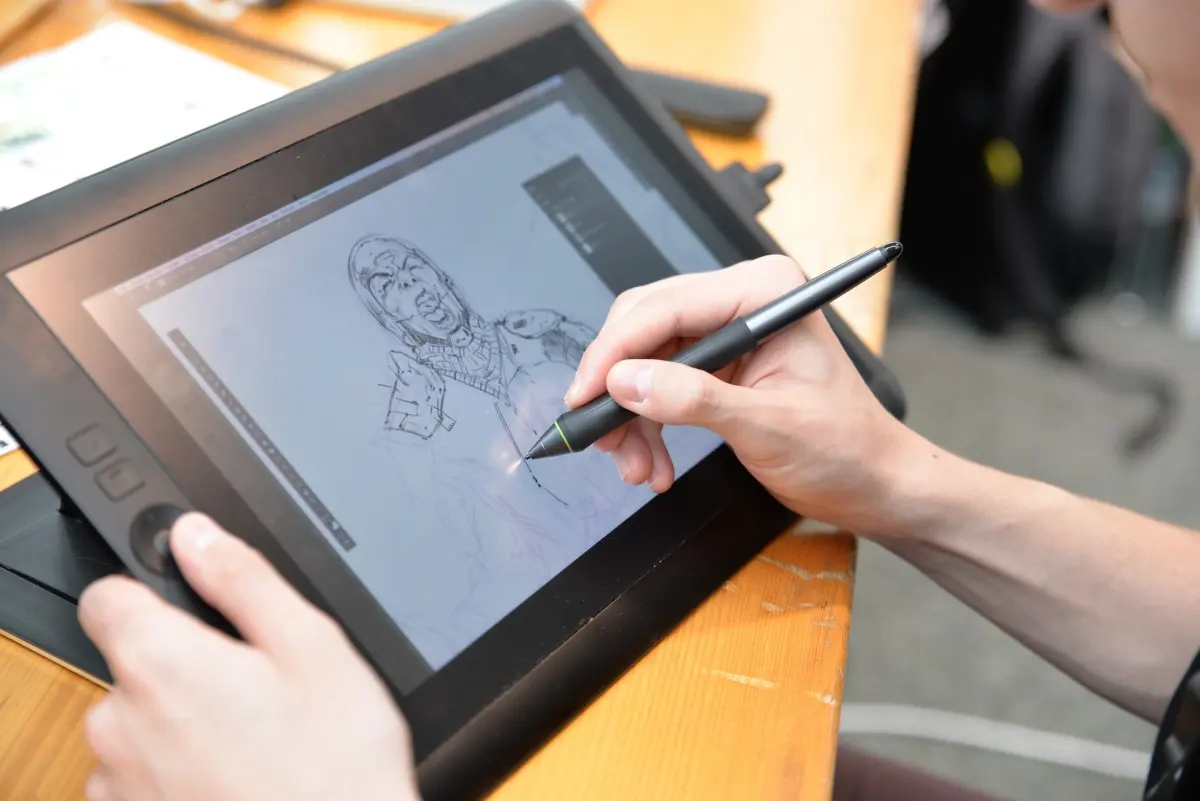
To begin your digital art journey, you need a hardware device capable of running graphics software and a stylus that supports pressure sensitivity. The most common entry-level options are pen tablets, which connect to a computer and require you to look at your monitor while drawing. Alternatively, pen displays or standalone tablets like the iPad Pro offer a more intuitive experience by allowing you to draw directly on the screen.
When selecting your setup, consider these essential components:
- A pressure-sensitive stylus: This allows you to control line thickness and opacity based on how hard you press.
- Graphics software: Programs like Krita, Clip Studio Paint, or Procreate are industry standards.
- A computer or tablet: Ensure your device meets the minimum RAM and processor requirements for your chosen software.
- A stable workspace: An ergonomic desk and chair will prevent physical strain during long drawing sessions.
How to learn digital art basics
The transition from traditional to digital media involves mastering the software interface rather than just drawing techniques. Start by familiarizing yourself with the toolbar, which typically includes brushes, erasers, selection tools, and the color picker. Spend your first few days simply experimenting with different brush textures and sizes to understand how the software responds to your stylus pressure.
Once you are comfortable with the interface, focus on these fundamental digital workflows:
- Canvas setup: Choose a resolution of at least 300 DPI for high-quality printing.
- Layer management: Use separate layers for your sketch, line art, base colors, and shading.
- Keyboard shortcuts: Memorize common commands like "Undo" (Ctrl+Z or Cmd+Z) to speed up your workflow.
- Brush customization: Learn how to adjust brush opacity and flow to create smooth gradients.
Best software for beginners
Choosing the right software is a personal preference, but some programs are better suited for those just starting out. Free, open-source software like Krita is excellent for beginners because it offers professional-grade features without a subscription cost. If you prefer a mobile workflow, Procreate is widely considered the most user-friendly app for iPad users due to its intuitive touch-based interface and simple navigation.
For those who want to transition into professional fields like animation or comic design, Clip Studio Paint is the industry standard. It includes specialized tools for panel layouts, perspective rulers, and vector line art that are difficult to replicate in basic painting programs. Regardless of your choice, stick to one program for at least three months to build muscle memory and fully understand the toolset before switching to another platform.
Common mistakes when starting digital art
One of the most frequent errors beginners make is relying too heavily on digital "crutches" like the undo button or stabilization tools. While these features are helpful, overusing them can prevent you from developing steady hand control and confidence in your strokes. Another mistake is ignoring the importance of canvas organization; working on a single layer makes it nearly impossible to edit specific parts of your drawing later without ruining the rest of the work.
Avoid these common pitfalls to accelerate your progress:
- Neglecting traditional art fundamentals: Digital tools cannot replace your understanding of anatomy, light, and color theory.
- Using too many brushes: Limit yourself to a few basic brushes until you master the basics of shading and texture.
- Working at low resolutions: Always start with a large canvas so your work remains crisp if you decide to resize it.
- Skipping regular file saves: Set your software to auto-save frequently to prevent losing hours of progress during a crash.
How long does it take to get good?
Becoming proficient in digital art is a marathon, not a sprint, and the timeline depends entirely on your dedication and current artistic background. If you are already familiar with traditional drawing, you may adapt to digital tools within a few weeks. If you are a complete beginner to art, expect to spend several months practicing daily to achieve consistent, clean results. Focus on completing small, finished projects rather than obsessing over technical perfection in every single line.
To maintain steady growth, set aside at least 30 to 60 minutes for deliberate practice every day. Study the works of artists you admire, participate in online drawing challenges, and seek constructive feedback from communities to identify areas for improvement. Remember that every digital artist started by drawing messy, uneven lines, and the only way to shorten your learning curve is to embrace the process of making mistakes and learning from them as you build your digital portfolio.
Key facts
- A pressure-sensitive graphics tablet, such as a Wacom Intuos or Huion Inspiroy, is the essential hardware for translating hand movements into digital lines.
- Raster software like Adobe Photoshop, Clip Studio Paint, or the free Krita uses pixels, making it ideal for painting and detailed illustration.
- Vector software like Adobe Illustrator or Inkscape uses mathematical paths, allowing images to be resized infinitely without losing quality.
- Layers are the most critical feature in digital art, allowing you to separate your sketch, line art, and colors onto independent, editable levels.
- The "Undo" command (Ctrl+Z or Cmd+Z) is your primary tool for experimentation, removing the fear of making permanent mistakes.
- DPI (dots per inch) should be set to at least 300 if you intend to print your artwork, ensuring high resolution and clarity.
The bottom line
Starting digital art requires a combination of basic hardware, such as a graphics tablet, and dedicated practice with layer-based software. By mastering essential tools like pressure sensitivity, undo functions, and layer management, you can overcome the initial learning curve. Focus on fundamental techniques rather than complex software features, and remember that consistency in your daily practice is the most effective way to improve your creative output.
People also ask
Do I need an expensive computer to start digital art?
You do not need a high-end machine to begin. Most modern laptops with at least 8GB of RAM can handle standard illustration software without significant performance issues.
Is it better to use a screen tablet or a drawing pad?
Drawing pads without screens are cheaper and more ergonomic, though they require a learning curve to coordinate your hand on the desk with the cursor on the monitor. Screen tablets provide a more natural, pen-to-paper experience but typically cost significantly more.
How long does it take to get used to a digital stylus?
Most beginners adjust to the feeling of a digital pen within one to two weeks of consistent practice. Focusing on simple exercises, such as drawing circles and straight lines, helps build the necessary muscle memory.
Can I use a mouse instead of a stylus?
While you can draw with a mouse, it lacks pressure sensitivity, which is vital for varying line thickness and opacity. A stylus is highly recommended for anyone serious about developing their digital drawing skills.
What is the difference between RGB and CMYK color modes?
RGB is optimized for digital screens and web display, while CMYK is specifically calibrated for physical printing. Always check your document settings before you begin to ensure your colors appear accurately in your final output.
Should I learn to draw on paper first?
Traditional drawing skills translate perfectly to digital platforms. Mastering anatomy, perspective, and lighting on paper provides a strong foundation that makes the transition to digital tools much more intuitive.
This answer was created with the help of AI research tools and reference sources. Spotted an error? Let us know — we correct mistakes quickly. See our editorial policy.