What is the best drawing tablet for beginners?
Short answer
The Wacom Intuos Small is the best drawing tablet for beginners due to its industry-standard reliability, compact design, and responsive pressure sensitivity. For those preferring to draw directly on a screen, the Huion Kamvas 13 offers an excellent, affordable entry point into pen-display technology without requiring a significant financial investment.
On this page
Which drawing tablet is best for beginners?
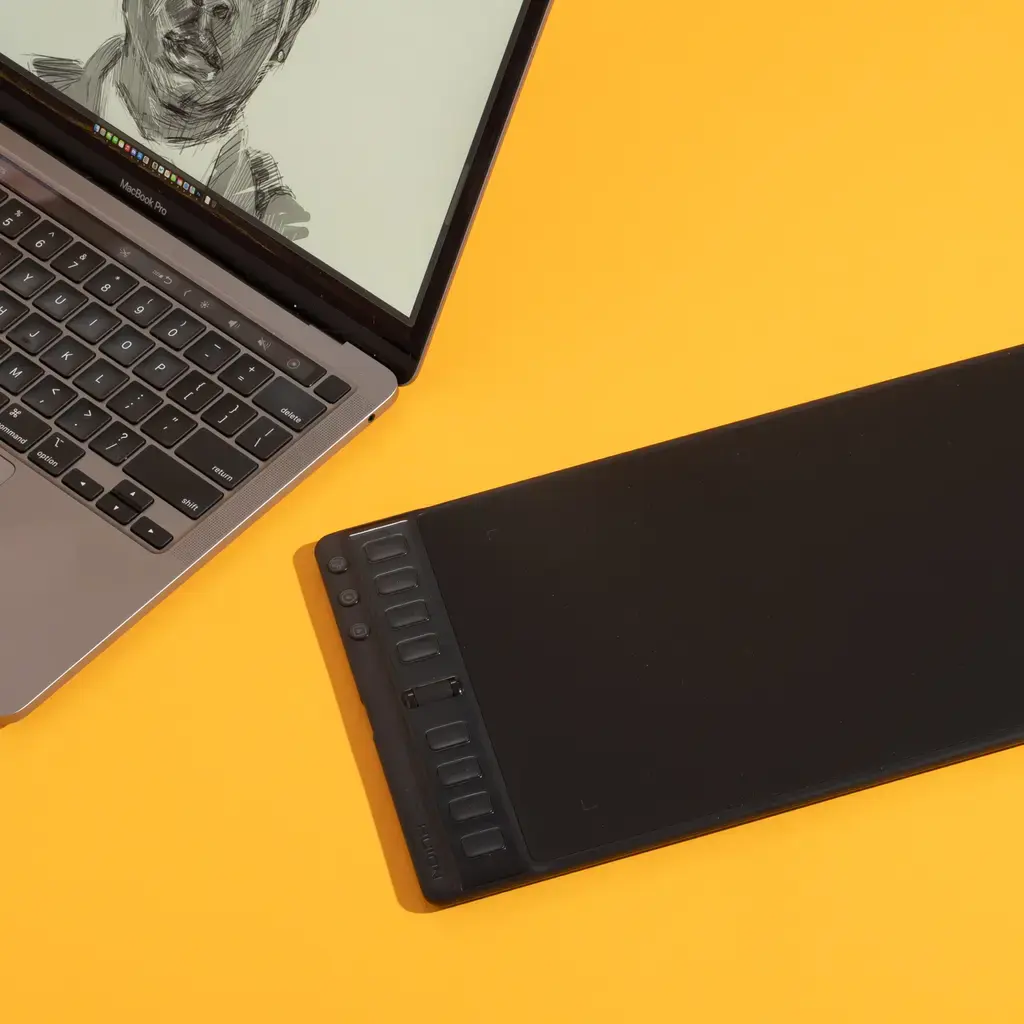
The ideal beginner tablet depends on your budget and your preferred workflow. Most experts recommend starting with a non-screen graphics tablet, often called a pen tablet, which connects to your computer and maps your hand movements to the cursor on your monitor. These devices are durable, portable, and teach you the essential hand-eye coordination required for digital illustration. Brands like Wacom, Huion, and XP-Pen dominate this category, offering reliable hardware that lasts for years.
If you prefer the tactile experience of drawing directly on a surface, pen displays are the next step up. These tablets feature an integrated screen that mirrors your computer display, allowing you to see your strokes exactly where your pen touches the glass. While these are more expensive and require more cable management, they provide a more intuitive transition from traditional paper-and-pencil art. Beginners should prioritize build quality and driver stability over high-end features like 4K resolution or wireless connectivity.
How to choose a drawing tablet
When selecting your first device, focus on the active area, pressure sensitivity levels, and the quality of the stylus. The active area is the physical space where the tablet registers your pen strokes; a medium-sized area is generally considered the "sweet spot" for most users. Pressure sensitivity, typically measured in 4,096 or 8,192 levels, determines how much the tablet responds to the force of your pen, affecting line weight and opacity.
Consider these essential factors before finalizing your purchase:
- Compatibility: Ensure the tablet drivers support your specific operating system, whether it is Windows, macOS, or ChromeOS.
- Connectivity: Decide if you prefer a wired USB connection for zero latency or a wireless Bluetooth model for a cleaner desk setup.
- Programmable Keys: Look for physical buttons on the tablet frame that can be mapped to common shortcuts like "undo" or "brush size."
- Stylus Technology: Check if the pen requires a battery or charging, as battery-free pens are significantly more convenient for long sessions.
How to set up your drawing tablet
Proper setup is crucial for ensuring a smooth transition to digital art. After unboxing your device, visit the manufacturer’s official website to download the latest drivers; never rely on the outdated software included on physical discs. Once the driver is installed, restart your computer to ensure the tablet is correctly recognized by the operating system. Open your drawing software and navigate to the tablet settings to calibrate the pen pressure and map the screen area.
Follow these steps to ensure your hardware is ready for use:
- Connect the tablet to your computer using the provided USB cable.
- Install the specific driver software and perform a system restart.
- Open your preferred art software, such as Krita, Photoshop, or Clip Studio Paint.
- Perform a test stroke to verify that pressure sensitivity is functioning as expected.
- Customize the side buttons on your pen to your most frequently used tools.
Common mistakes when using a drawing tablet
The most frequent error beginners make is failing to adjust their posture or the tablet’s orientation. Because the tablet is separate from the monitor, many users hunch over their desks, leading to neck strain and poor drawing habits. Keep your tablet centered in front of your keyboard and maintain a neutral spine position. Additionally, avoid the mistake of ignoring the "mapping" settings in your driver software; if your tablet is not mapped to your primary monitor, your cursor will feel erratic and unresponsive.
Another common pitfall is neglecting to clean the tablet surface or the stylus nibs. Over time, the plastic nibs wear down, becoming sharp or jagged, which can scratch the surface of your tablet. Inspect your nibs every few weeks and replace them using the tool provided in the box. Finally, do not get discouraged by the initial "disconnect" between your hand and the screen. This phase is temporary, and most users adapt to the hand-eye coordination required within ten to fifteen hours of consistent practice.
How to practice digital drawing effectively
Mastering a drawing tablet requires consistent, intentional practice rather than long, sporadic sessions. Start by focusing on basic exercises, such as drawing straight lines, perfect circles, and smooth gradients to get comfortable with the pressure sensitivity of your pen. Use these drills to build muscle memory before attempting complex illustrations. Many artists find that spending fifteen minutes on warm-up exercises before starting a larger project significantly improves their line quality and overall confidence.
Explore these effective practice routines to accelerate your learning:
- Line Weight Drills: Practice varying the pressure of your pen to create thick-to-thin lines in a single stroke.
- Shape Studies: Trace simple geometric shapes to understand how your software handles different brush textures and opacity levels.
- Layer Management: Create a simple drawing using at least five different layers to understand how to organize your files efficiently.
- Speed Painting: Set a timer for thirty minutes to complete a small sketch, which helps you learn to use shortcuts and focus on composition.
Key facts
- Beginners should prioritize tablets with a pressure sensitivity level of at least 2,048 to 8,192 for natural stroke control.
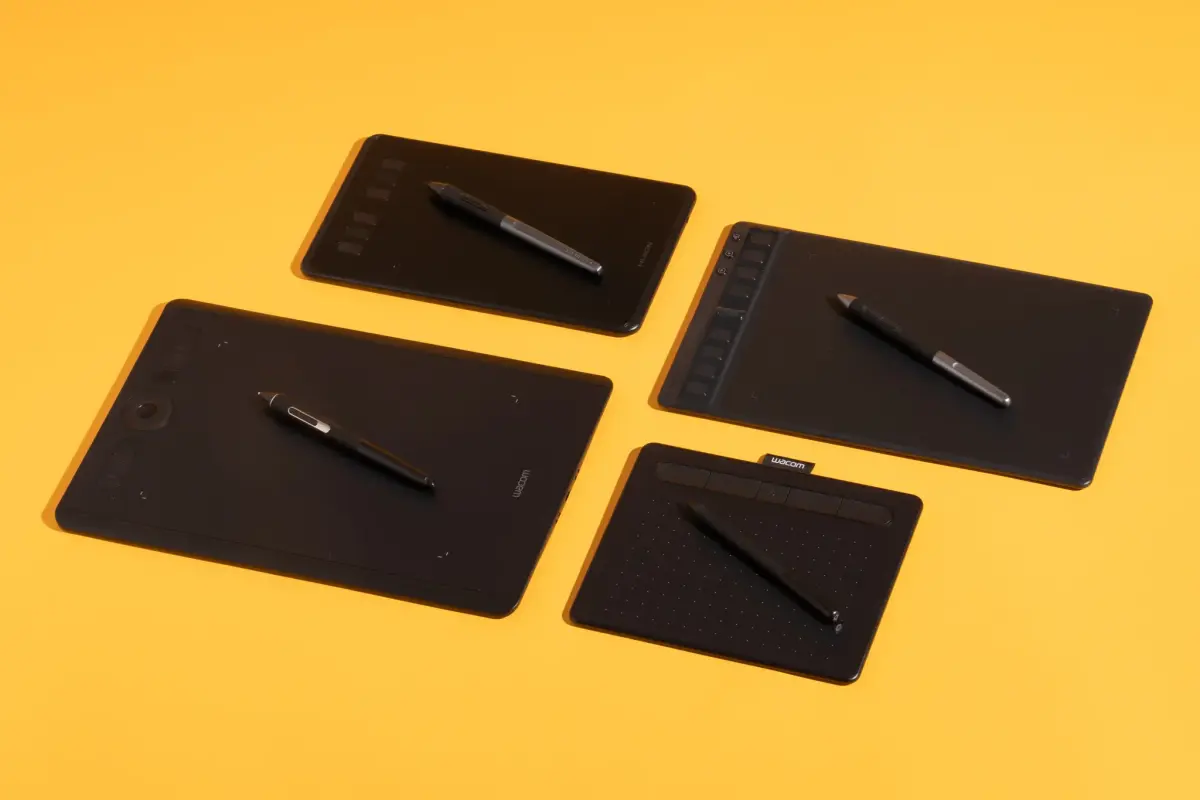
- Pen tablets without a screen, such as the Wacom Intuos or Huion Inspiroy, are the most affordable entry points for new artists.
- Pen displays feature a built-in monitor, allowing you to draw directly on the surface, which bridges the gap between traditional and digital art.
- Always check for compatibility with your specific operating system, such as Windows 10/11, macOS, or Android, before purchasing.
- Avoid buying tablets with low report rates; look for at least 200 points per second (PPS) to ensure there is no lag between your pen and the screen.
- Replace your stylus nibs regularly, as worn-down tips can scratch the drawing surface and reduce precision.
The bottom line
For most beginners, the best approach is to start with a reliable, screenless pen tablet from established brands like Wacom, Huion, or XP-Pen. These devices are cost-effective, durable, and teach the essential motor skills required for digital illustration. Focus on finding a comfortable active area size and ensuring your computer meets the system requirements, as this provides the most stable foundation for your creative journey.
People also ask
Do I need a computer to use a drawing tablet?
Most entry-level pen tablets require a connection to a PC or Mac to function. However, some standalone tablets, such as the Apple iPad with an Apple Pencil, function as independent devices.
What is the difference between active area and overall size?
The overall size is the physical footprint of the device, while the active area is the specific portion of the tablet that registers your pen input. Always check the active area dimensions to ensure they match your drawing style.
Should I buy a wireless or wired tablet?
Wired tablets are generally cheaper and do not require battery management. Wireless models offer more desk flexibility but require periodic charging of the tablet and sometimes the pen.
Do I need specialized software to use a drawing tablet?
While tablets work as mouse replacements, they are designed for software like Adobe Photoshop, Krita, or Clip Studio Paint. These programs utilize pressure sensitivity to change brush opacity and size based on your touch.
How long does a drawing tablet usually last?
A well-maintained drawing tablet can last between five to ten years. The most common failure points are the USB cable connection and the stylus battery, if applicable.
Is it difficult to learn how to draw without looking at my hand?
It takes most beginners about one to two weeks of consistent practice to master hand-eye coordination on a non-screen tablet. Your brain quickly adapts to the relationship between the tablet surface and the cursor on your monitor.
This answer was created with the help of AI research tools and reference sources. Spotted an error? Let us know — we correct mistakes quickly. See our editorial policy.