What is a stylus?
Short answer
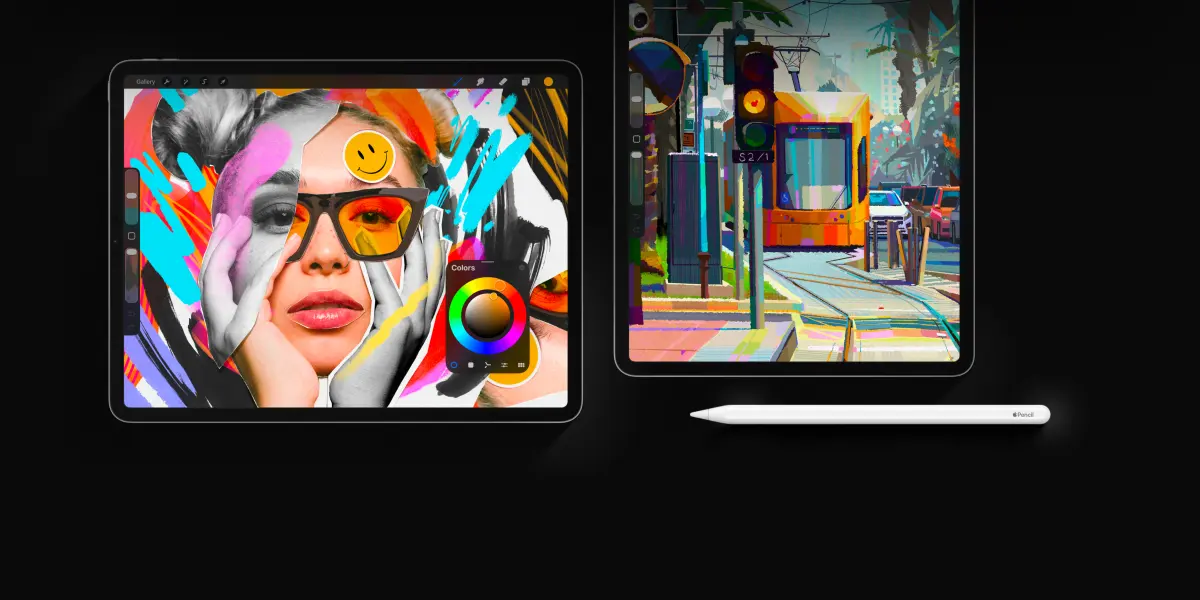
A stylus is a pen-shaped input device used to interact with touchscreens or digital tablets. It allows users to draw, write, or navigate with greater precision than a finger. Modern versions incorporate pressure sensitivity and tilt recognition, making them essential tools for graphic designers, digital artists, and students taking handwritten notes.
On this page
What is a stylus used for?
A stylus serves as a digital bridge between a human hand and a computing surface. While early versions were simple plastic sticks designed for resistive screens, modern tools are sophisticated instruments. They are primarily used for digital illustration, photo editing, and handwritten note-taking on tablets like the Apple iPad or Microsoft Surface. By mimicking the feel of a traditional pen or pencil, a stylus provides a natural interface for creative tasks that require fine motor control.
Beyond artistic endeavors, a stylus helps reduce the physical strain of navigating complex software interfaces. Many professionals use them to sign digital documents, annotate PDFs, or perform precise selections in spreadsheets. Because the tip of a stylus is significantly smaller than a fingertip, it allows for high-accuracy interactions that prevent input errors. This makes it a vital accessory for anyone who uses a tablet as a primary workstation rather than just a media consumption device.
How to choose a stylus for your device
Selecting the right stylus requires understanding the compatibility between your hardware and the peripheral. Not all styluses work on every screen; some rely on capacitive technology, while others use active digitizers. Before purchasing, verify whether your tablet supports active stylus input, as this determines features like palm rejection and pressure sensitivity.
- Check your tablet’s official specifications for "active stylus support."
- Determine if you need an active pen (battery-powered) or a passive stylus (rubber-tipped).
- Consider the nib material, as some feel like felt while others are hard plastic.
- Research pressure levels, which range from 1,024 to over 4,000, to ensure it meets your artistic needs.
- Verify if the device requires a specific proprietary brand, such as the Apple Pencil or S-Pen.
If you choose a generic capacitive stylus, expect a basic experience that functions like a finger. These are inexpensive but lack the advanced features found in manufacturer-specific models.
Why does my stylus have pressure sensitivity?
Pressure sensitivity is a feature that adjusts the thickness or opacity of a digital line based on how hard you press the nib against the screen. This technology is essential for digital painting, as it replicates the behavior of physical brushes and pencils. When you press lightly, the line remains thin and faint; pressing harder creates a bold, dark stroke. This dynamic response is what separates a professional digital art tool from a simple navigation pointer.
The hardware inside the stylus communicates with the tablet’s digitizer layer to measure force. This data is then processed by software like Adobe Photoshop or Procreate to render the stroke in real-time. Without this sensitivity, digital drawing would look flat and mechanical. For those who do not draw, high pressure sensitivity may be unnecessary, but for artists, it is the primary factor that makes a digital workflow feel authentic and professional.
Common mistakes when using a stylus
Many users struggle with their stylus because they do not account for software settings or hardware maintenance. One frequent error is failing to calibrate the stylus within the tablet’s settings, which can lead to offset lines where the ink appears slightly away from the nib. Another common issue is neglecting the nib itself. Over time, the tip wears down, becoming sharp or jagged, which can scratch a screen protector or the glass display if left unchecked.
- Pressing too hard, which can damage the screen or wear out the nib prematurely.
- Ignoring palm rejection settings, leading to accidental marks on the canvas.
- Using a stylus with a dirty screen, which creates friction and uneven strokes.
- Leaving an active stylus uncharged, rendering it useless during a project.
- Forgetting to pair the stylus via Bluetooth if the specific model requires a wireless connection.
Always keep a spare nib in your kit and clean your screen regularly to ensure a smooth, responsive drawing experience.
How to maintain your stylus for longevity
Proper maintenance ensures that your stylus remains accurate and responsive for years. If you use an active stylus, the battery is the most critical component. Avoid letting the battery drain to zero percent frequently, as this can degrade the lithium-ion cell over time. Store the stylus in a cool, dry place and use a protective case if you carry it in a bag to prevent the nib from snapping or the casing from cracking.
Regularly wipe the stylus body with a soft, lint-free cloth to remove oils from your hands. If the nib becomes worn, replace it immediately to maintain precision and protect your screen’s surface. Most manufacturers sell replacement nib kits that are inexpensive and easy to install. By treating your stylus as a precision instrument rather than a disposable accessory, you will maintain the accuracy required for professional design and writing tasks throughout the life of your device.
Key facts
- A stylus is a pen-shaped input device used to interact with touchscreens or graphics tablets.
- Modern active styluses contain internal batteries and electronic circuitry to communicate with specific device digitizers.
- Passive or capacitive styluses mimic human finger touch and work on almost any touchscreen device.
- Pressure sensitivity levels, often ranging from 2,048 to 8,192, determine how thick or thin a digital line appears based on force.
- Palm rejection technology allows users to rest their hand on a screen while writing without creating accidental marks.
- To avoid damage, replace worn-out plastic nibs regularly and ensure the screen is free of debris to prevent scratches.
The bottom line
A stylus is an essential tool for digital artists and note-takers, bridging the gap between traditional handwriting and modern computing. While passive models offer simple touch navigation, active styluses provide professional-grade precision through pressure sensitivity and palm rejection. By choosing the right tool for your specific device and maintaining the nib, you can significantly enhance your productivity and creative control when working on digital screens.
People also ask
Can I use any stylus on any tablet?
No, many high-end active styluses are proprietary and only work with specific tablet models. Capacitive styluses are universal but lack the advanced features like pressure sensitivity or tilt recognition.
What is the difference between an active and a passive stylus?
An active stylus uses internal power to communicate with the screen for features like palm rejection and pressure sensitivity. A passive stylus is essentially a conductive tip that simply simulates the electrical properties of a finger.
Do styluses require charging?
Only active styluses require charging, which is typically done via USB-C or by magnetically attaching to the tablet. Passive styluses contain no electronics and never need to be charged.
How do I know if my stylus nib needs replacing?
If the nib feels scratchy, appears flattened, or exhibits uneven responsiveness, it is time for a replacement. Most manufacturers recommend changing the tip every few months depending on how frequently you draw or write.
Can a stylus scratch my screen?
A stylus itself is unlikely to scratch a screen, but trapped dust or a damaged, sharp nib can cause permanent marks. Using a screen protector provides an extra layer of safety for your display.
Why does my stylus have buttons on the side?
These buttons are typically programmable shortcuts used to switch between tools, such as changing from a pen to an eraser. You can usually customize these functions in the device's settings menu.
This answer was created with the help of AI research tools and reference sources. Spotted an error? Let us know — we correct mistakes quickly. See our editorial policy.