What is the best drawing app for Android?
Short answer
Infinite Painter is widely considered the best drawing app for Android due to its professional-grade brush engine, intuitive interface, and extensive layer support. While apps like Sketchbook and HiPaint offer excellent alternatives, Infinite Painter provides the most comprehensive feature set for artists seeking a desktop-like experience on a mobile tablet or smartphone.
On this page
Which drawing app is best for beginners?
Autodesk Sketchbook remains the gold standard for those new to digital illustration on Android. Its interface is intentionally minimalist, hiding complex tools until they are needed, which prevents the overwhelming feeling common in more advanced software. The app provides a clean canvas and a highly responsive set of natural media brushes that mimic pencils, markers, and watercolors without requiring deep technical knowledge.
For beginners, the learning curve is significantly shallower than in professional suites. You can quickly access basic tools like the color wheel, layer manager, and brush library from the top toolbar. It supports pressure sensitivity for stylus users, making the transition from traditional paper to digital screens feel natural and immediate.
- Use the "Quick UI" mode to hide all menus for a full-screen drawing experience.
- Practice using the symmetry tools to understand basic composition and balance.
- Save your work frequently to the local gallery to prevent data loss during app crashes.
How to choose a drawing app for professionals?
Professional artists require apps that support high-resolution canvases, advanced blending modes, and complex layer management. Infinite Painter and HiPaint are the top contenders in this category, offering features such as clipping masks, adjustment layers, and custom brush creation. These apps allow for non-destructive editing, meaning you can alter colors or effects without permanently changing the underlying pixels of your artwork.
When selecting a professional tool, consider the app's export capabilities. A high-quality app should support PSD file formats, allowing you to move your work between your Android device and desktop software like Adobe Photoshop or Clip Studio Paint. Compatibility with common file formats ensures that your workflow remains flexible and efficient across different hardware platforms.
- Check if the app supports your specific stylus model for pressure and tilt sensitivity.
- Verify the maximum canvas size to ensure it meets your print or digital resolution requirements.
- Test the brush engine for lag, as high-resolution brushes can slow down older Android processors.
Why do Android drawing apps lag?
Performance issues in drawing apps usually stem from hardware limitations rather than software flaws. When you work on a canvas with high dots-per-inch (DPI) settings or hundreds of layers, your device’s random-access memory (RAM) and graphics processing unit (GPU) become heavily taxed. This results in "input lag," where the stroke appears on the screen a fraction of a second after your stylus moves.
To mitigate lag, experts recommend reducing the canvas resolution or merging finished layers to free up memory. Additionally, many Android devices have battery-saver modes that throttle CPU performance, which directly impacts the responsiveness of drawing applications. Disabling these power-saving features while you work can often provide an immediate boost to your drawing speed and overall app stability.
- Avoid using excessively large brush sizes for broad strokes, as these require more processing power.
- Keep your tablet or phone cool, as thermal throttling will significantly slow down rendering times.
- Close background applications to ensure the drawing app has priority access to system resources.
Common mistakes when starting digital art
One of the most frequent errors beginners make is failing to organize their layers. Drawing everything on a single layer makes it impossible to edit specific elements later, such as changing a background color or moving a character without affecting the foreground. Always separate your sketch, line art, color, and shading onto distinct layers to maintain full control over your composition.
Another common mistake is neglecting the use of stabilizers or "lazy" tools. Digital screens are often slippery compared to paper, which can make lines look shaky or uneven. Most Android drawing apps include a stabilization feature that smooths out your strokes automatically. Failing to calibrate this setting often leads to frustration when trying to draw clean, precise lines for professional-looking illustrations or graphic design projects.
- Never work on the background layer directly; always create a new layer for your initial sketch.
- Do not rely solely on the "undo" button; learn to embrace mistakes as part of the creative process.
- Avoid using pure black for shadows, as this often makes digital art look flat and muddy.
How to optimize your Android drawing setup
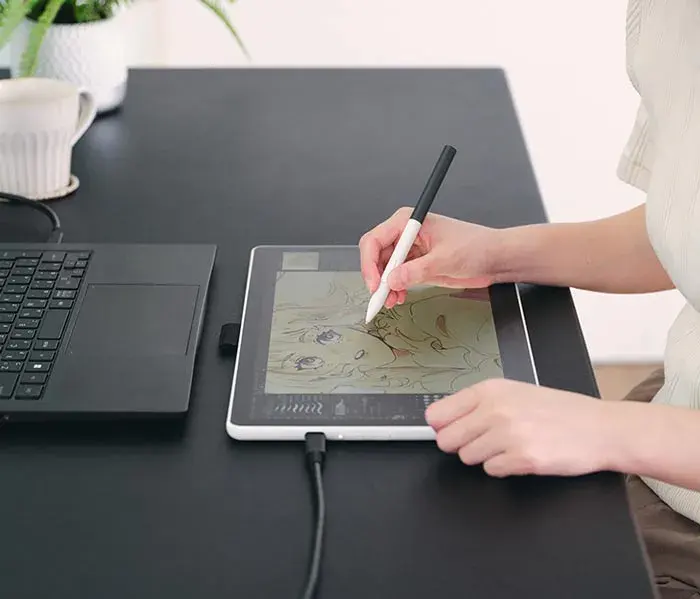
Optimizing your setup goes beyond just choosing the right software. Using a screen protector with a matte finish can provide the necessary friction to make the stylus feel more like a pencil on paper. Furthermore, investing in a high-quality active stylus that supports palm rejection is essential for comfort. Palm rejection prevents the app from registering your hand as a brush stroke while you are resting it on the screen.
Finally, ensure your software is updated to the latest version, as developers frequently release patches to improve stylus compatibility and fix bugs. Many professional artists also use a Bluetooth-enabled remote or a keyboard shortcut device to trigger common commands like undo, redo, or brush resizing. This keeps your primary hand focused on the canvas, leading to a much faster and more fluid creative workflow.
Key facts
- Infinite Painter offers a desktop-class brush engine with over 160 natural brush presets.
- Sketchbook by Autodesk is widely regarded as the industry standard for clean, distraction-free interfaces.
- HiPaint provides a professional-grade experience with support for over 80 layers in a single project.
- Always use a pressure-sensitive stylus to achieve varying line weights and professional shading.
- Most professional apps allow you to export files in PSD format for seamless transition to Adobe Photoshop.
- Regularly clear your app cache to prevent lag when working on high-resolution canvases exceeding 4000 pixels.
The bottom line
Choosing the best Android drawing app depends on your specific workflow, but Infinite Painter and Sketchbook remain the top choices for most users. Focus on apps that offer robust layer management, pressure sensitivity, and high-resolution export options. By pairing these tools with a quality stylus and maintaining high DPI settings, you can create professional-grade digital art that is easily transferable to any desktop-based creative environment.
People also ask
Do I need a tablet to use these apps effectively?
While these apps run on phones, a tablet with a large screen and active stylus support is highly recommended for precision. Small screens often limit your workspace and make detailed brushwork difficult to manage.
Can I use these apps for professional graphic design?
Yes, many illustrators use Android tablets for professional concept art and digital painting. The key is ensuring your app supports high-resolution exports and layer blending modes required by industry standards.
Are these drawing apps free to use?
Most apps offer a "freemium" model where basic tools are free, but advanced features like layer masks or custom brushes require a one-time purchase or subscription. Always check the store page for specific feature limitations before starting a project.
How do I prevent my hand from interfering with the screen?
Most modern drawing apps include "palm rejection" settings that ignore touch input while a stylus is detected. If your app lacks this, consider wearing a specialized artist glove to keep your screen clean and responsive.
Can I import custom brushes into Android drawing apps?
Many apps, such as Infinite Painter and HiPaint, support the import of ABR files. This allows you to bring your favorite brush sets from desktop software directly onto your mobile device.
Is it possible to print my digital drawings?
Yes, provided you set your canvas to at least 300 DPI (dots per inch) at the final print size. Working at 72 DPI will result in pixelated, low-quality prints, so always verify your document settings before you begin.
This answer was created with the help of AI research tools and reference sources. Spotted an error? Let us know — we correct mistakes quickly. See our editorial policy.