What is a Wacom tablet?
Short answer
A Wacom tablet is a specialized peripheral device that allows users to draw, write, or manipulate digital content using a pressure-sensitive stylus. It serves as a bridge between physical hand movements and digital input, providing artists, designers, and educators with precise control that a standard computer mouse or trackpad cannot replicate.
On this page
What is a Wacom tablet used for?
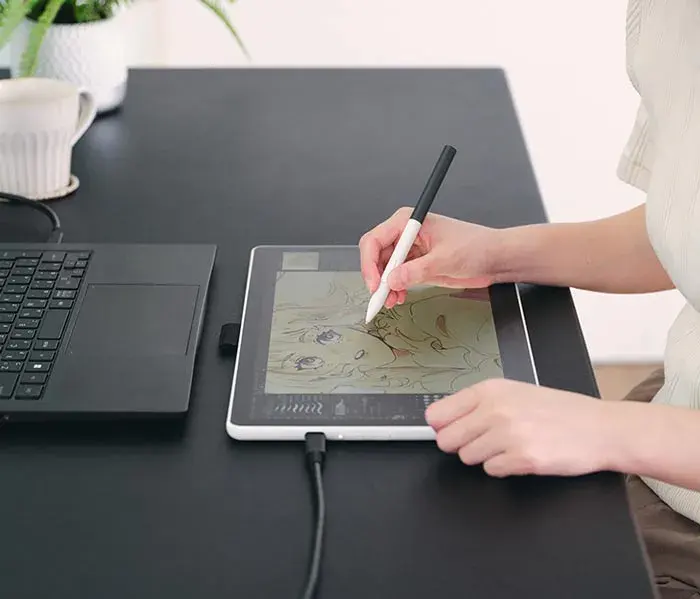
Wacom tablets serve as essential tools for digital artists, graphic designers, and photographers who require high levels of precision. By using a stylus on a sensitive surface, users can emulate the feel of traditional media like pencils, brushes, or charcoal directly within software such as Adobe Photoshop, Corel Painter, or ZBrush. The pressure sensitivity allows for varying line thickness and opacity based on how hard the user presses, which is critical for realistic digital illustration and photo retouching.
Beyond creative arts, these tablets are increasingly used in professional and academic settings for document annotation and remote teaching. Teachers use them to write equations or diagrams on digital whiteboards, while engineers use them for CAD drafting. Because they map the tablet surface directly to the computer screen, they offer a more ergonomic and natural workflow than a mouse, often helping to reduce repetitive strain injuries associated with long hours of computer navigation.
How does a Wacom tablet work?
The core technology behind most Wacom tablets is electromagnetic resonance (EMR). The tablet contains a grid of wires underneath the surface that generates a weak magnetic field. The stylus contains a small coil that interacts with this field, allowing the tablet to track the pen's position, tilt, and pressure without needing a battery or a cord connected to the pen itself. This makes the stylus lightweight and comfortable for extended use.
When you move the pen near the surface, the tablet detects the coordinates and sends that data to your computer. The driver software then translates these signals into cursor movements or brush strokes. Because the tablet surface corresponds to the dimensions of your monitor, the pen acts as an absolute pointing device. This means the top-right corner of the tablet always maps to the top-right corner of your screen, allowing for the "muscle memory" that makes drawing feel intuitive.
How to set up a Wacom tablet
Setting up your tablet correctly is the first step toward a productive workflow. Follow these steps to ensure your hardware functions optimally:
- Download the latest driver from the official Wacom website for your specific model.
- Connect the tablet to your computer via USB cable or Bluetooth, depending on your device's capabilities.
- Open the Wacom Tablet Properties application to calibrate the pressure sensitivity and customize the side buttons on your stylus.
- Map the tablet area to your monitor if you are using a multi-display setup to ensure the proportions are correct.
A common mistake is failing to install the manufacturer's driver, relying instead on generic operating system drivers. Without the proprietary driver, you will likely lose pressure sensitivity and the ability to customize your express keys, rendering the tablet little more than an expensive mouse. Always restart your computer after the initial driver installation to ensure all background services are properly initialized.
Best Wacom tablets for beginners
For those new to digital art, Wacom offers several entry-level options that provide professional-grade technology at a lower price point. The Intuos line is the standard recommendation for beginners who are comfortable looking at their monitor while drawing on a separate pad. These tablets are durable, portable, and provide the essential pressure sensitivity needed to learn digital painting techniques.
- Intuos Small/Medium: Ideal for students and hobbyists with limited desk space.
- One by Wacom: A budget-friendly, no-frills option that focuses purely on the drawing experience.
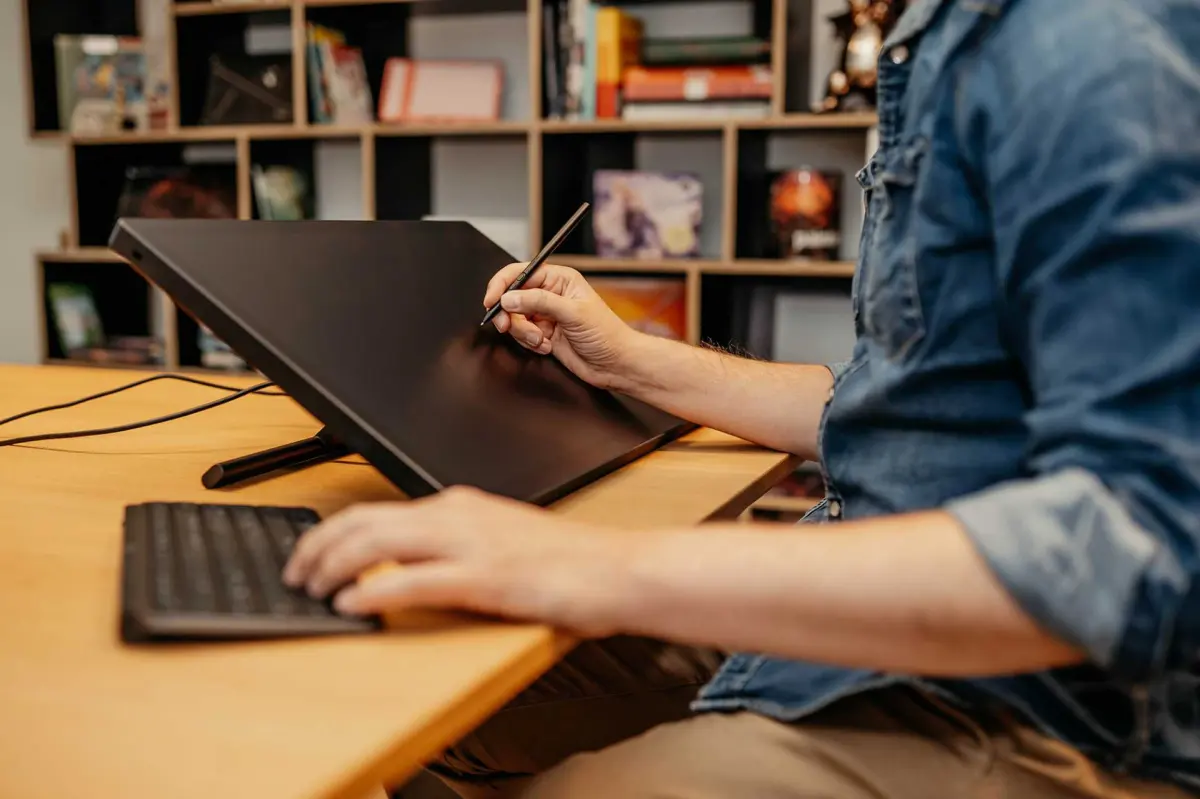
- Wacom One: An entry-level display tablet where you draw directly onto a screen, bridging the gap between a pad and a high-end monitor.
When choosing your first tablet, prioritize the active drawing area over extra features like wireless connectivity or touch-input gestures. A larger surface area can be helpful for long, sweeping strokes, but a medium-sized tablet is usually sufficient for most users. Avoid overspending on high-end features until you have developed a consistent habit and understand your specific workflow needs.
Common mistakes when using a Wacom tablet
One of the most frequent errors users make is neglecting their posture and grip. Because the pen is thin, users often develop a "death grip," which can lead to hand fatigue or cramping. Hold the stylus loosely, much like you would hold a fountain pen or a paintbrush. Additionally, ensure your tablet is positioned squarely in front of your keyboard or centered on your desk to maintain a neutral alignment of your shoulders and wrists.
Another common issue involves the surface of the tablet. Over time, the friction between the pen nib and the tablet surface will wear the nib down. If you notice the pen feeling scratchy or unresponsive, check the tip for uneven wear. You should replace the nib as soon as it becomes sharp or jagged to prevent permanent scratches on your tablet's surface. Finally, avoid using cleaning chemicals like glass cleaner on the tablet; a simple, slightly damp microfiber cloth is the safest and most effective way to keep the surface clean and functional for years to come.
Key facts
- Wacom is a Japanese company founded in 1983 that specializes in graphics tablets and interactive pen displays.
- The tablets use electromagnetic resonance (EMR) technology, allowing the stylus to operate without batteries or charging cables.
- Pressure sensitivity is a core feature, with professional models often supporting up to 8,192 distinct levels of pressure.
- Wacom offers three main product lines: Intuos (pen tablets), Cintiq (pen displays), and MobileStudio Pro (all-in-one computers).
- Most tablets connect to a computer via USB or Bluetooth to act as a precision input device for design software.
- Users should always install the latest Wacom driver from the official website to ensure proper pressure sensitivity and button mapping.
The bottom line
Wacom tablets serve as essential precision tools for digital creators, replacing the standard mouse with a natural, pressure-sensitive pen experience. Whether you choose a screenless tablet for portability or a high-end display for direct interaction, these devices bridge the gap between traditional artistry and digital workflows. Proper driver maintenance and regular nib replacement ensure your hardware remains responsive and accurate for years of creative production.
People also ask
Do I need a screen on my tablet to draw effectively?
You do not need a screen, as many users prefer standard pen tablets like the Intuos. These require hand-eye coordination to look at your monitor while drawing on the desk, which most artists master within a few days of practice.
Can I use a Wacom tablet with a Mac or a Windows PC?
Yes, Wacom tablets are compatible with both macOS and Windows operating systems. You simply download the specific driver for your OS and connect the device to a USB port or pair it via Bluetooth.
What is the difference between a pen tablet and a pen display?
A pen tablet is a flat surface that maps your hand movements to your computer monitor. A pen display, such as the Cintiq, features an integrated LCD screen that allows you to draw directly onto the digital canvas.
How do I avoid common mistakes when setting up a new tablet?
A common mistake is failing to remove old drivers before installing new ones, which causes cursor lag. Always ensure your workspace is clear of metal objects, as they can occasionally interfere with the electromagnetic signal of the pen.
Are Wacom tablets only for professional digital artists?
While they are industry standards for illustrators and animators, they are also used for digital signatures, online teaching, and photo editing. Anyone who needs more precision than a standard computer mouse can benefit from the tablet's ergonomic design.
Do the pen nibs wear out over time?
Yes, the plastic nibs on the stylus are designed to wear down through friction against the tablet surface. You should replace the nib once it becomes sharp or uneven to prevent scratching your tablet's protective overlay.
This answer was created with the help of AI research tools and reference sources. Spotted an error? Let us know — we correct mistakes quickly. See our editorial policy.