What is pen pressure?
Short answer
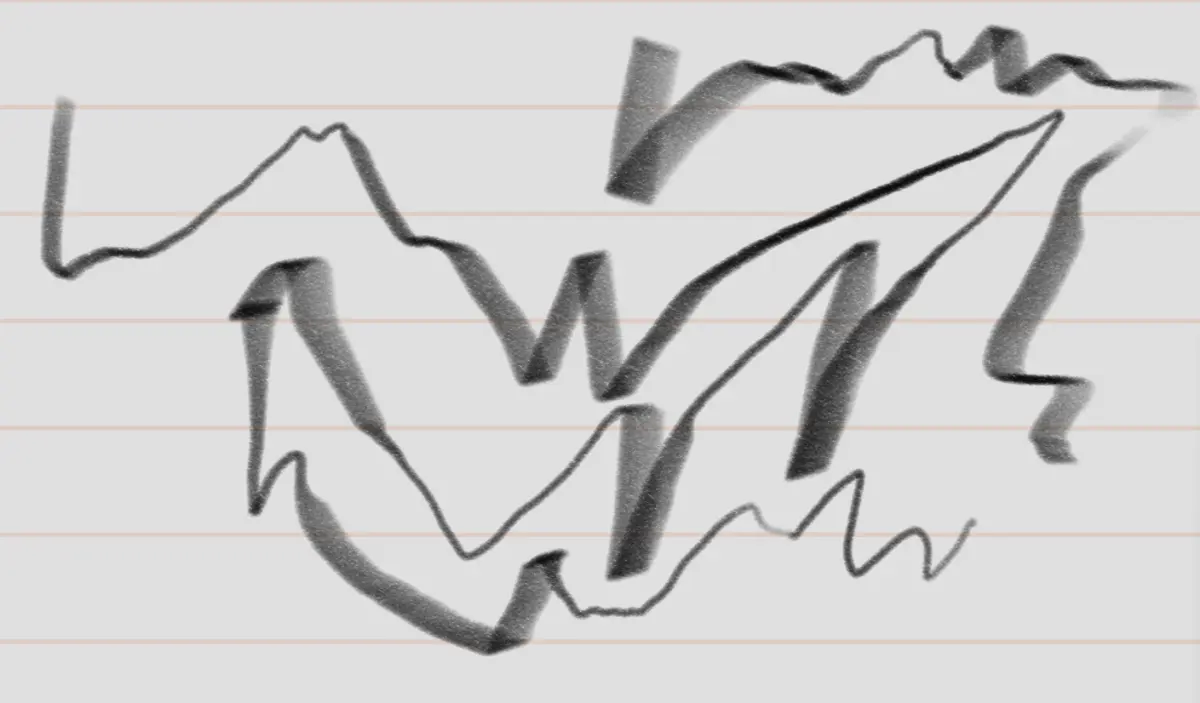
Pen pressure is a digital feature that detects how hard a stylus is pressed against a tablet surface. It translates this physical force into varied line thickness, opacity, or flow within software. By mimicking traditional media like graphite or paint, it allows artists to create nuanced, expressive strokes during digital illustration.
On this page
How does pen pressure work?
Pen pressure technology relies on an electromagnetic resonance (EMR) sensor grid embedded beneath the surface of a graphics tablet. When a stylus makes contact, the pressure-sensitive tip sends a signal to the tablet indicating the exact amount of force applied. This data is converted into a numerical value, typically ranging from 2,048 to 8,192 levels, which the computer software interprets to adjust brush dynamics.
The software maps these levels to specific tool properties. For instance, a light touch might produce a thin, faint line, while a firm press generates a thick, dark stroke. This functionality is essential for digital painting because it bridges the gap between the tactile feedback of physical tools and the precision of digital canvases. Without this sensitivity, a stylus would act merely like a mouse, producing uniform, lifeless lines that lack the organic variation found in traditional sketching or calligraphy.
Why is pen pressure important for artists?
The primary value of pen pressure is the control it provides over digital media. In traditional art, the physical friction of a pencil on paper or the saturation of a brush on canvas changes based on the artist's grip. Pen pressure replicates this behavior, allowing for complex shading, blending, and line weight variations that define professional-grade work. It enables artists to transition seamlessly between fine details and broad, expressive strokes without constantly adjusting settings.
Beyond simple line weight, pressure sensitivity can control multiple parameters simultaneously. Advanced software settings allow artists to link pressure to:
- Brush size for varying stroke thickness.
- Opacity for layering colors like watercolors.
- Flow for controlling the amount of digital "ink" deposited.
- Rotation or tilt for specialized brush effects.
By mastering these variables, an artist can achieve a high level of realism and emotional depth that would be impossible to replicate with a standard mouse or a non-pressure-sensitive stylus.
How to set up pen pressure in software
Configuring your hardware and software correctly is vital for a responsive drawing experience. Most modern tablets require specific drivers to communicate pressure data to your operating system. Once installed, you must calibrate the pressure curve to match your natural hand weight, ensuring that the tablet feels comfortable and intuitive to use.
Follow these steps to ensure your pressure settings are optimized:
- Download and install the latest driver from your tablet manufacturer’s website.
- Open the tablet control panel and locate the "Pen Pressure" or "Tip Feel" settings.
- Use the pressure test tool to adjust the slider until the stroke activation feels natural.
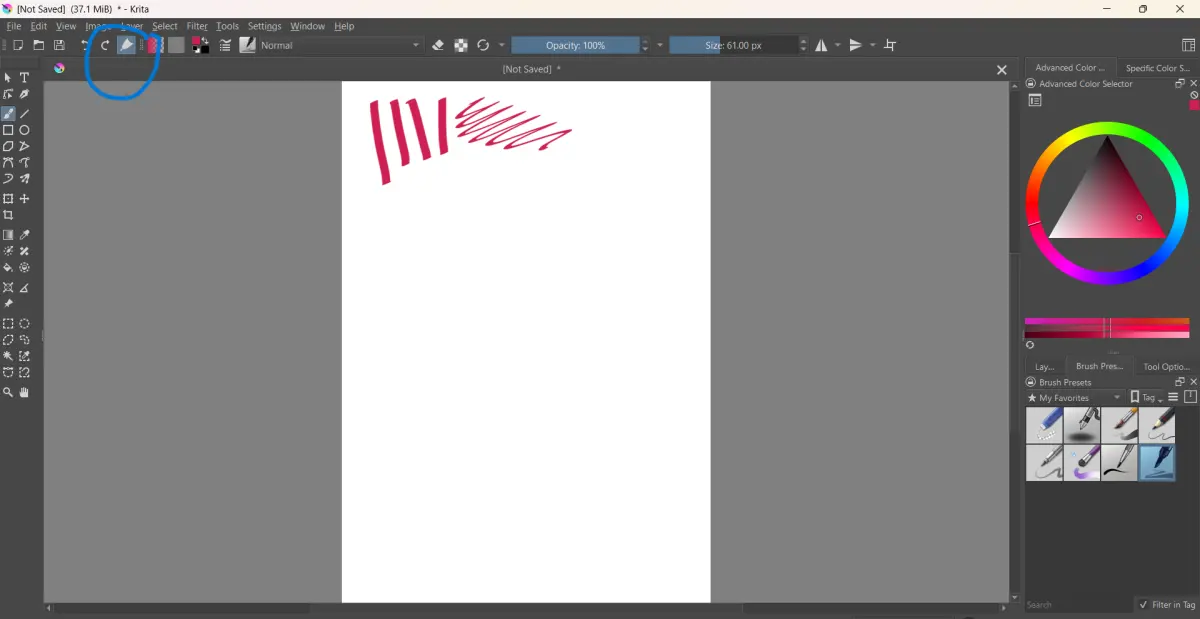
- Open your drawing software, such as Photoshop or Krita, and ensure "Pressure Sensitivity" is enabled in the brush settings panel.
- Create a test layer to verify that your lines react correctly to varying levels of force.
Common mistakes when using pen pressure
Many beginners struggle with pressure sensitivity because they apply too much force, leading to hand fatigue and inconsistent results. A common error is failing to adjust the pressure curve, which makes the brush feel either too sensitive or completely unresponsive. Beginners often assume that the hardware is broken when, in reality, the software settings simply need a minor adjustment to match their personal drawing style.
Another frequent mistake involves neglecting the "initial activation force." This is the amount of pressure required before the software registers a mark. If this is set too high, you will find yourself pressing down hard just to start a line, which ruins the flow of your work. Conversely, setting it too low can result in "ghost marks" or unwanted dots appearing on the canvas when you are merely hovering the pen. Taking the time to fine-tune these settings prevents frustration and helps maintain a consistent, ergonomic workflow during long sessions.
Best tablets for pressure sensitivity
When selecting a tablet, the number of pressure levels is a common marketing metric, but it is not the only factor that determines quality. While 8,192 levels are standard in professional devices, the consistency of the pressure curve and the initial activation force are often more important for the user experience. High-end devices from brands like Wacom, Huion, and XP-Pen offer excellent responsiveness, making them the industry standard for digital illustrators and designers.
Consider these factors when choosing a device:
- Latency: The delay between moving the pen and the line appearing on screen.
- Surface texture: A matte finish often provides better friction, mimicking paper.
- Tilt support: Allows the brush to change shape based on the angle of the pen.
- Compatibility: Ensure the tablet drivers are updated for your specific operating system.
Investing in a reliable tablet with robust pressure support will significantly improve your artistic output and comfort, allowing you to focus on your creative vision rather than technical limitations.
Key facts
- Pen pressure is a feature in digital tablets that detects how hard you press the stylus against the screen.
- Most modern professional tablets support 8,192 levels of pressure sensitivity for precise control.
- Higher pressure levels allow for smoother transitions between thin and thick lines in digital art.
- You must install specific tablet drivers, such as Wacom or Huion drivers, to enable pressure sensitivity in software.
- Pressure settings can be customized in programs like Adobe Photoshop or Clip Studio Paint to match your drawing style.
- If your lines look uniform regardless of force, check your brush settings to ensure "Pen Pressure" is toggled on.
The bottom line
Pen pressure is the essential technology that bridges the gap between traditional media and digital art. By translating the physical force of your hand into varying line widths and opacity, it provides a tactile, expressive experience. Mastering your tablet's pressure curve settings allows you to customize your workflow, ensuring that your digital tools respond exactly to your unique touch, whether you are sketching, painting, or handwriting.
People also ask
Do all styluses support pressure sensitivity?
No, many basic capacitive styluses designed for simple navigation do not have pressure sensors. Only active styluses specifically engineered for drawing tablets or high-end mobile devices support this feature.
Why does my pen pressure stop working suddenly?
This is often caused by outdated drivers or a conflict between your tablet software and your operating system updates. Restarting your computer or reinstalling the latest driver version usually resolves the connection issue.
Does the nib of my pen wear out?
Yes, the plastic nibs on digital pens are consumable parts that wear down over time due to friction against the tablet surface. You should replace the nib when it becomes sharp or uneven to prevent scratching your screen.
Can I adjust how hard I need to press to get a thick line?
Most tablet software includes a "pressure curve" setting that allows you to adjust the sensitivity. You can make the pen feel "softer" so that it reaches full pressure with very little physical force.
Is pen pressure necessary for note-taking?
It is not strictly necessary for simple text notes, but it makes handwriting look more natural and legible. It mimics the behavior of a real ink pen by varying the line weight during strokes.
Does screen protector thickness affect pressure sensitivity?
Extremely thick screen protectors can interfere with the electromagnetic resonance technology used by many tablets. Using a thin, manufacturer-approved film is recommended to maintain optimal accuracy and responsiveness.
This answer was created with the help of AI research tools and reference sources. Spotted an error? Let us know — we correct mistakes quickly. See our editorial policy.