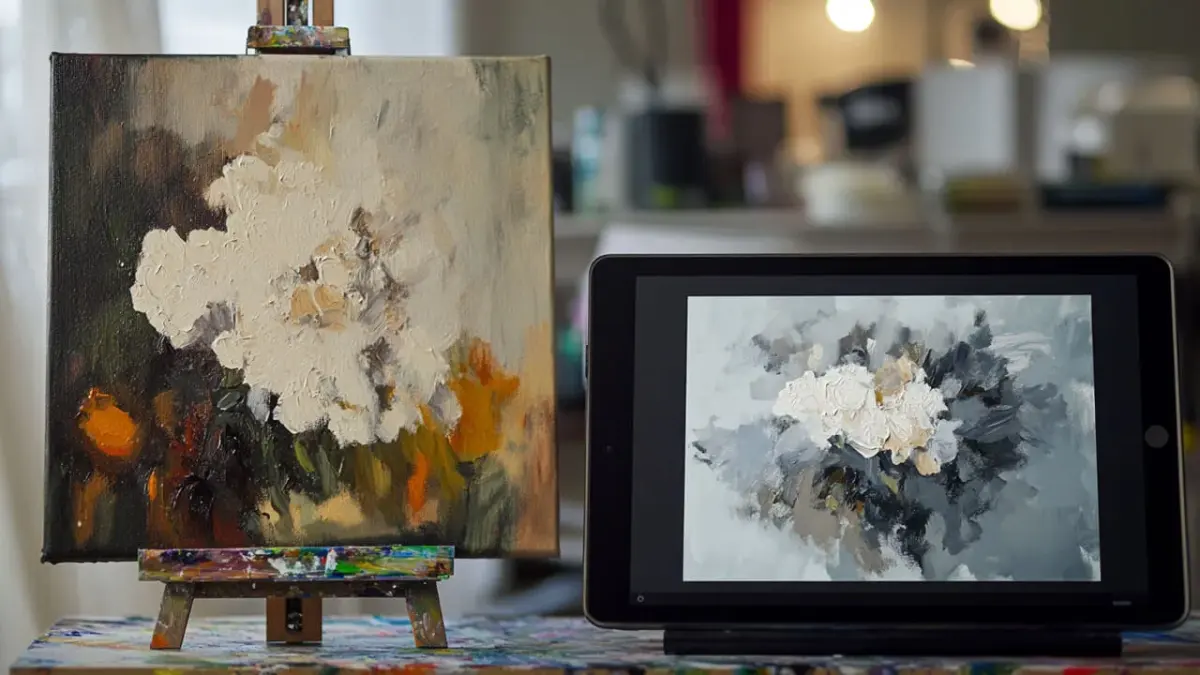
What is the best drawing app for iPad?
Short answer
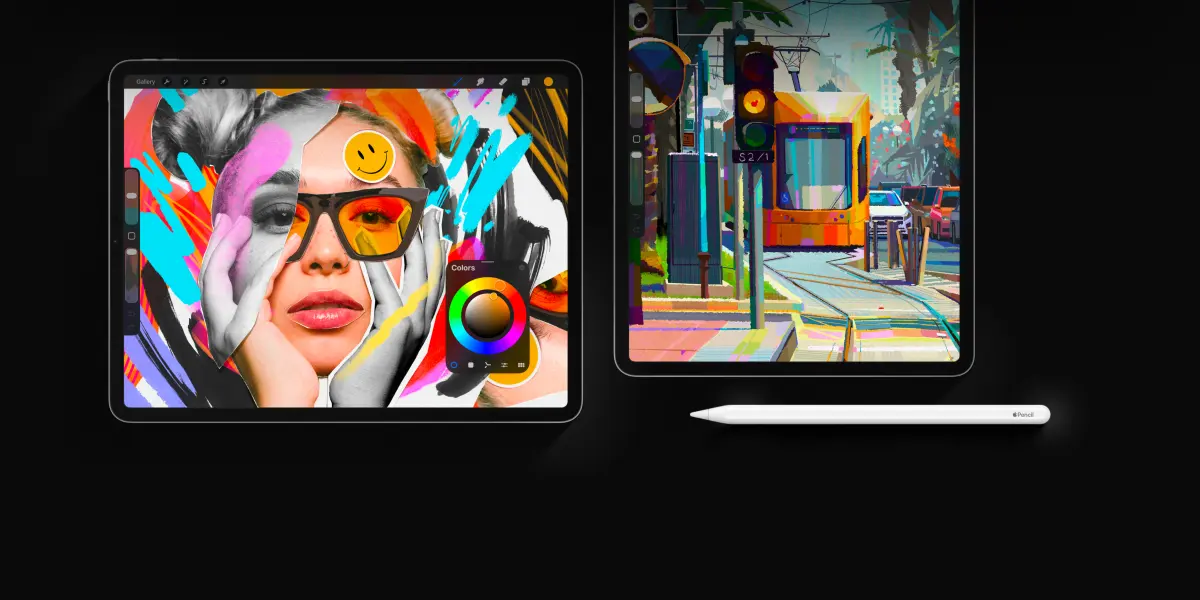
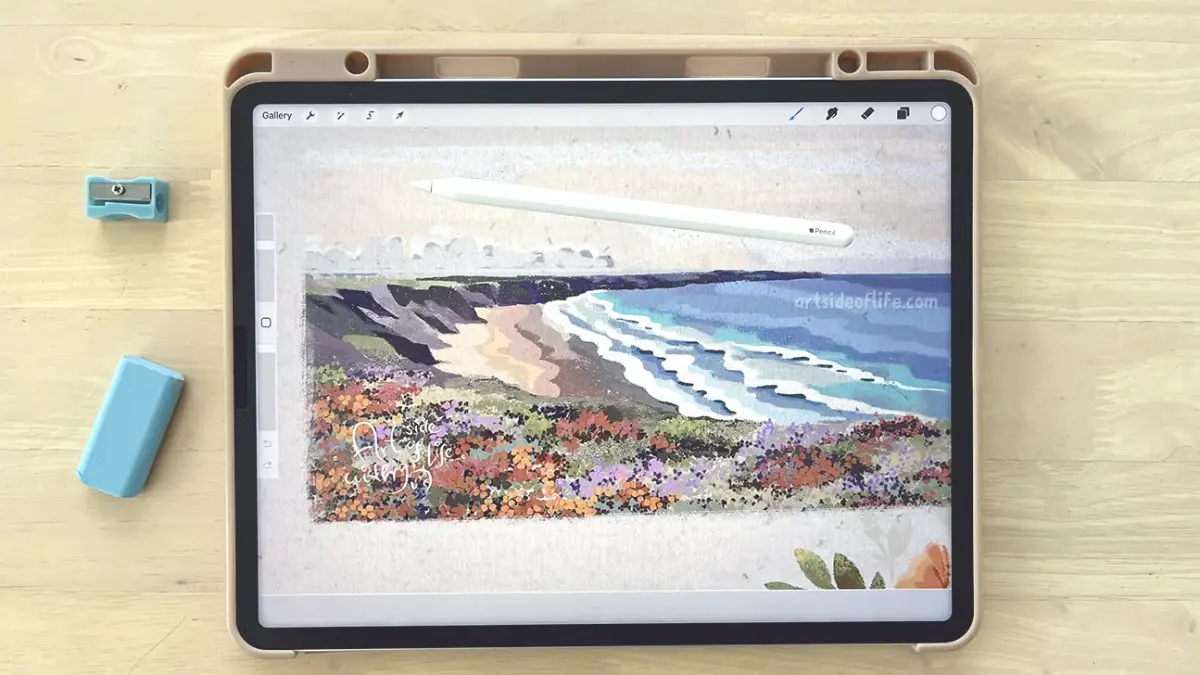
Procreate is widely considered the best drawing app for iPad due to its intuitive interface, professional-grade brush engine, and one-time purchase model. While competitors like Adobe Fresco or Clip Studio Paint offer specific advantages for vector work or animation, Procreate provides the most balanced, high-performance experience for digital artists of all levels.
On this page
Which drawing app is best for beginners?
Procreate is the industry standard for beginners because it balances professional depth with an accessible user interface. Unlike complex desktop software, Procreate hides its advanced settings in menus, allowing new users to start drawing immediately without feeling overwhelmed. Its gesture-based controls, such as two-finger taps for undoing mistakes, make the digital learning curve feel natural and tactile.
If you are just starting, consider these essential features to master first:
- Layer management: Learn to separate your sketch, line art, and color layers to maintain control.
- Brush library: Experiment with the default pencil and ink sets to find your preferred texture.
- Time-lapse recording: Enable this feature to review your creative process and identify areas for improvement.
- Canvas settings: Start with a standard screen-sized canvas to ensure your iPad maintains high performance.
Many beginners make the mistake of downloading too many custom brushes immediately. Stick to the built-in tools for the first month to understand how pressure sensitivity and opacity settings function across different mediums.
How to choose the right software for your needs
Selecting the right app depends heavily on your specific artistic goals. If you are interested in illustration and painting, Procreate remains the top choice. However, if you require vector graphics—files that can be scaled infinitely without losing quality—Adobe Illustrator for iPad or Affinity Designer are superior options. For artists who focus on manga or long-form comic creation, Clip Studio Paint offers specialized tools like panel borders and perspective rulers that are not found in standard painting apps.
Consider these factors before committing to a purchase:
- Pricing model: Check if the app requires a monthly subscription or a one-time fee.
- File compatibility: Ensure the app can export to industry-standard formats like PSD, PNG, and PDF.
- Hardware integration: Verify that the app supports advanced Apple Pencil features like tilt and pressure sensitivity.
- Cloud storage: Determine if you need cross-device syncing to work on your desktop computer later.
Common mistakes when starting digital art
The most common mistake new users make is failing to organize their workspace. Digital files can quickly become cluttered with dozens of unnecessary layers, making the file size too large for the iPad to process smoothly. Always name your layers and group them into folders as your project grows. Another frequent error is working at a low resolution, which results in pixelated images when you attempt to print your work. Always set your canvas to at least 300 DPI to ensure high-quality output.
Avoid these pitfalls to keep your workflow efficient:
- Ignoring the zoom tool: You might miss small stray marks that ruin the final composition.
- Overusing blending modes: Use them sparingly to avoid muddying your colors.
- Neglecting to save: While most apps have auto-save, manually backing up your work to cloud storage or an external drive is critical for data security.
- Excessive brush swapping: Focus on mastering the technique rather than searching for the perfect brush.
How to improve your workflow on iPad
Optimizing your iPad for drawing involves more than just software choices; it requires managing your hardware resources. The iPad’s performance can degrade if the internal storage is nearly full or if too many background apps are running while you draw. Close all unnecessary applications before starting a large project to dedicate the maximum amount of RAM to your drawing app. Additionally, using a matte screen protector can provide the friction needed to mimic the feeling of paper, which significantly improves line precision.
To maintain a professional workflow, implement these practices:
- Use keyboard shortcuts: Connect a Bluetooth keyboard to trigger your most-used tools instantly.
- Calibrate your Apple Pencil: Ensure the pressure curve is set to match your natural hand weight.
- Organize your gallery: Create stacks or folders to keep your finished pieces separate from your practice sketches.
- Update regularly: Keep both your iPadOS and your drawing apps updated to benefit from the latest performance patches and feature additions.
Why professional artists prefer specific apps
Professional artists often use a combination of apps to complete a single project. They might use Procreate for the initial sketching and color blocking because of its fluidity, then export the file to Adobe Fresco for its advanced live-oil and watercolor brushes. This hybrid workflow allows artists to leverage the unique strengths of different software environments. The ability to move files seamlessly between apps is a key reason why the iPad has become a legitimate tool for commercial production.
When you reach an intermediate or professional level, prioritize apps that offer:
- Advanced color profiles: Essential for ensuring that colors look the same on screen as they do in physical print.
- Custom brush creation: The ability to import or design your own brushes gives your work a unique visual signature.
- Animation tools: Many modern apps now include frame-by-frame animation timelines, allowing you to bring your static illustrations to life.
- Scripting and automation: Look for apps that support batch processing or custom actions to save time on repetitive tasks.
Key facts
- Procreate remains the industry standard for iPad illustrators, offering a one-time purchase model without subscription fees.
- Adobe Fresco provides a unique "live brush" engine that mimics the physical behavior of watercolors and oils.
- Concepts utilizes a vector-based engine, allowing users to scale drawings infinitely without losing image quality.
- Clip Studio Paint is the preferred choice for professional manga and comic book artists due to its advanced paneling tools.
- Most professional apps require an Apple Pencil for pressure sensitivity, which is essential for natural line weight control.
- iPad Pro models with M-series chips support "hover" features, allowing users to preview brush strokes before touching the screen.
The bottom line
Choosing the right iPad app depends on your specific creative goals. Procreate is the best all-around tool for digital illustration, while Clip Studio Paint excels at comics and Concepts is ideal for technical design. Regardless of your choice, prioritize apps that support pressure sensitivity and layers. Start with a free trial or a low-cost entry point to determine which interface feels most natural for your workflow.
People also ask
Do I need a subscription to use professional drawing apps on an iPad?
While Procreate is a one-time purchase, apps like Adobe Fresco and Clip Studio Paint often utilize monthly or annual subscription models to access premium features and cloud storage.
Can I use a third-party stylus instead of an Apple Pencil?
While some generic styluses work for basic sketching, they lack the pressure sensitivity and tilt recognition required for professional-grade art, making the Apple Pencil the recommended choice.
Is it possible to transfer my iPad drawings to a desktop computer?
Yes, most major drawing apps allow you to export files in formats like PSD, PDF, or PNG, which can then be opened in desktop software like Adobe Photoshop.
Which app is best for beginners who have never drawn digitally?
Procreate is widely considered the most intuitive for beginners because of its streamlined interface, extensive library of video tutorials, and active online community.
Does the size of my iPad screen affect which app I should choose?
Larger screens like the 12.9-inch iPad Pro offer more canvas space for complex illustrations, but all major apps are optimized to function effectively on smaller models like the iPad Air or mini.
How do I prevent my hand from smudging the screen while drawing?
Most artists use an "artist glove," which covers the pinky and ring finger, or enable the "palm rejection" setting within the app to ignore accidental touches.
This answer was created with the help of AI research tools and reference sources. Spotted an error? Let us know — we correct mistakes quickly. See our editorial policy.