What is an iPad Pro good for in art?
Short answer
The iPad Pro is a premier digital art tool, offering a portable, high-performance canvas for illustration, graphic design, and photo editing. With its high-refresh-rate Liquid Retina XDR display, precise pressure sensitivity via the Apple Pencil, and professional-grade software, it streamlines complex creative workflows from sketching to final export for artists.
On this page
Why is the iPad Pro good for digital art?
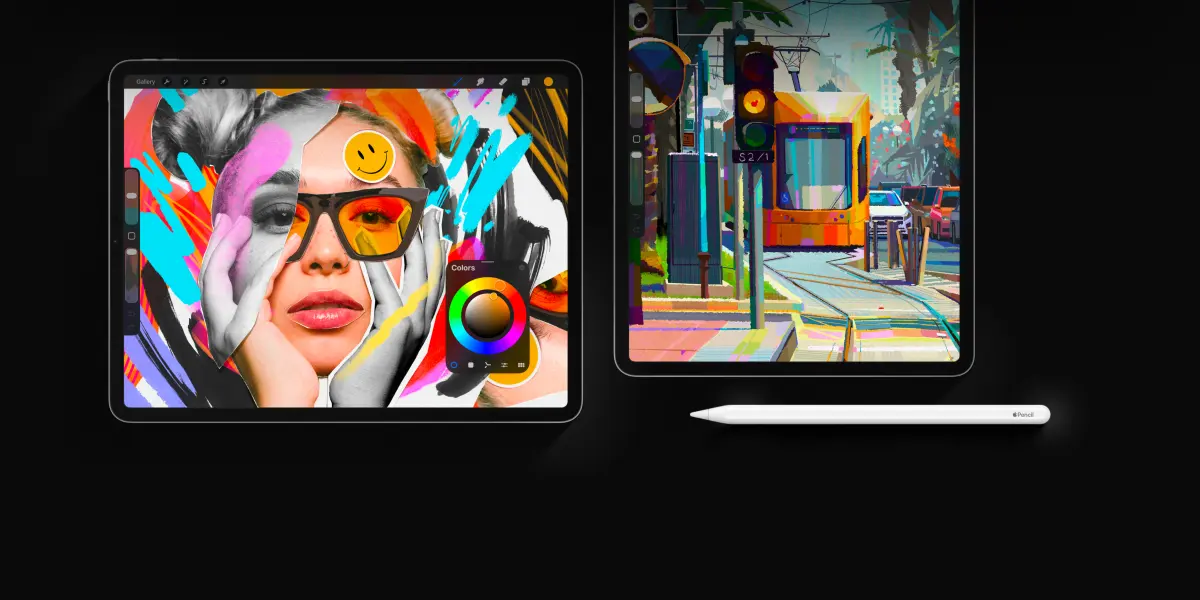
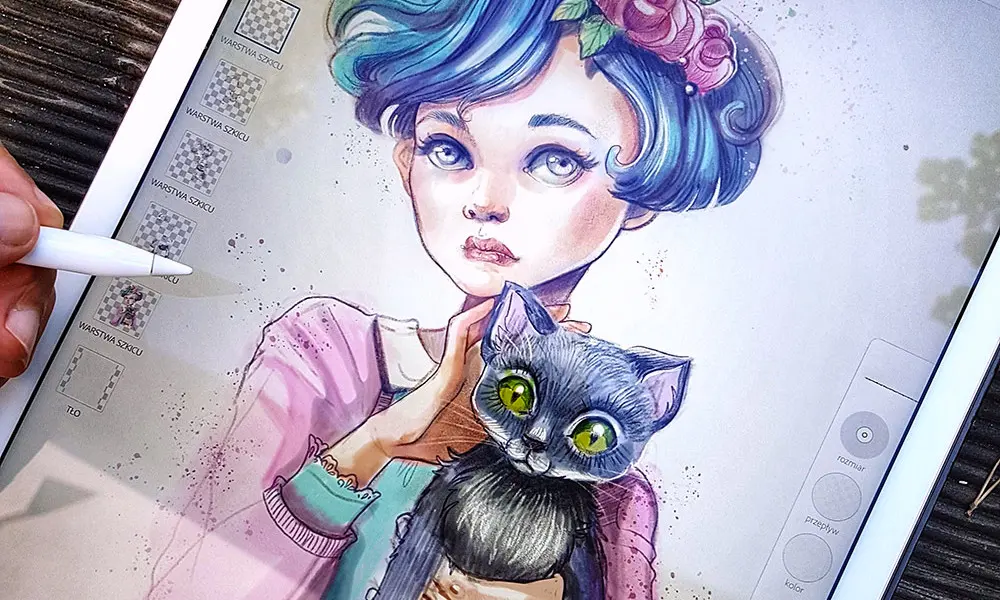
The iPad Pro serves as a professional-grade mobile studio, combining high-performance hardware with a specialized operating system. Its primary advantage is the integration between the device and the Apple Pencil, which offers near-zero latency and tilt sensitivity that mimics traditional media. The ProMotion technology, featuring a 120Hz refresh rate, ensures that strokes appear instantly under the tip of the pen, reducing the disconnect often felt with older drawing tablets.
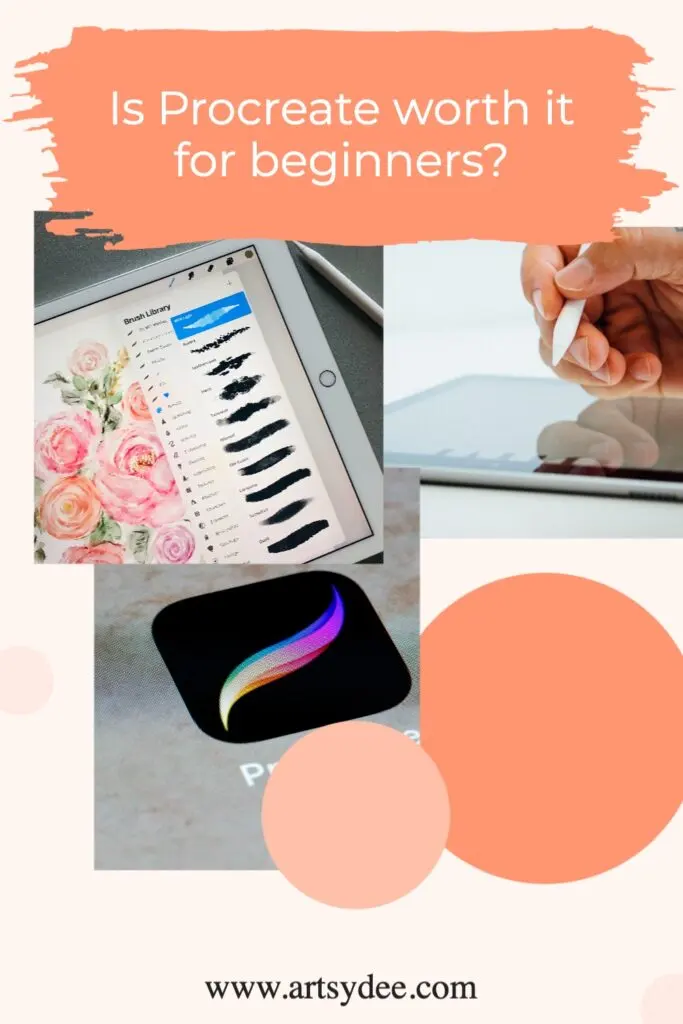
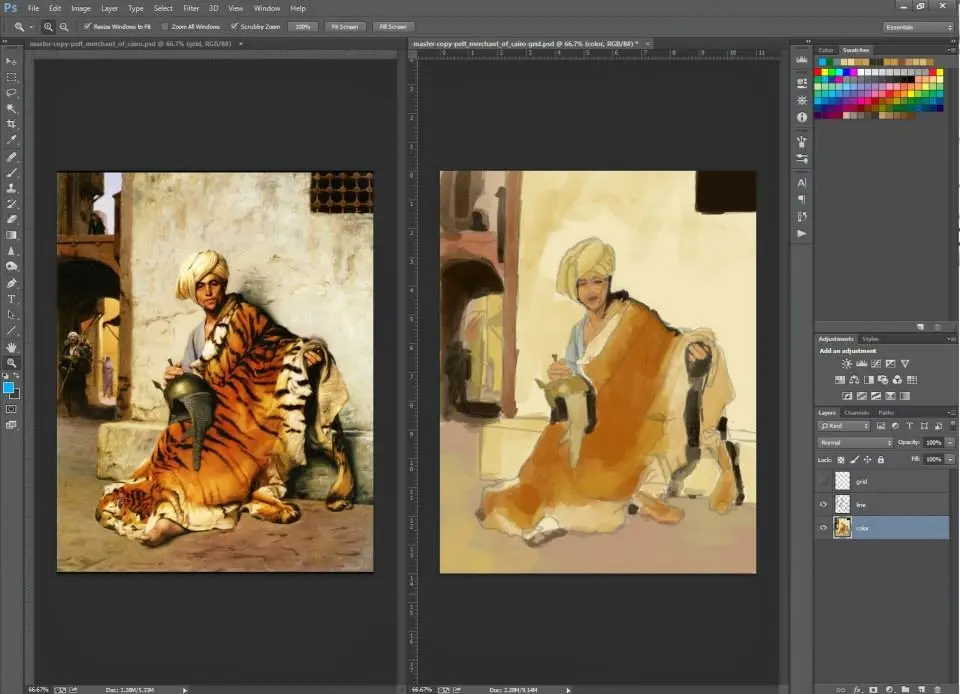
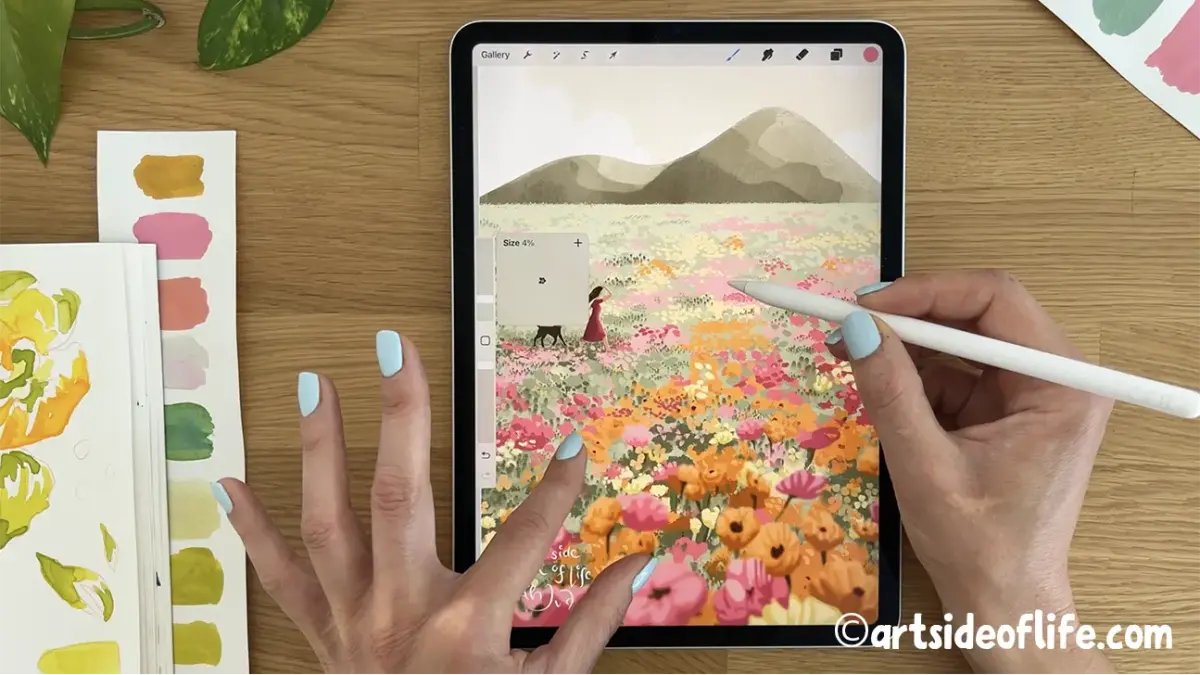
Beyond hardware, the iPad Pro benefits from a robust ecosystem of creative applications that rival desktop software. Apps like Procreate, Adobe Fresco, and Affinity Designer allow artists to work with complex layers, high-resolution canvases, and non-destructive editing tools. Because the device is fully portable, artists can transition from a coffee shop to a professional office without losing access to their full library of brushes, color palettes, and ongoing projects.
How to set up an iPad Pro for drawing
Establishing an efficient workspace is critical for long-term comfort and productivity. Start by choosing a screen protector that suits your tactile preference; matte "paper-like" protectors provide friction that mimics real paper, while glossy glass protectors offer maximum clarity and color accuracy. Ensure your Apple Pencil is paired and calibrated correctly within your preferred drawing app to register pressure curves that match your natural hand strength.
Follow these steps to optimize your initial setup:
- Enable "Palm Rejection" settings in your drawing app to prevent stray marks while your hand rests on the screen.
- Organize your workspace by creating custom brush folders and color swatches for quick access.
- Configure gesture controls, such as two-finger tap for undo and three-finger tap for redo, to speed up your workflow.
- Regularly calibrate your color profile in the system settings to ensure your display matches the output requirements of your final prints.
Best apps for iPad Pro artists
The software landscape for the iPad Pro is vast, catering to different artistic disciplines ranging from technical illustration to fine art painting. Procreate remains the industry standard for many digital illustrators due to its intuitive interface and high-performance engine. For those working in vector-based design, Affinity Designer provides a professional suite that handles complex paths and typography with ease, functioning similarly to desktop software.
Consider these top-tier applications based on your specific artistic needs:
- Procreate: Best for digital painting, sketching, and frame-by-frame animation.
- Adobe Fresco: Excellent for live brushes that mimic the physics of watercolor and oil paint.
- Affinity Designer: The go-to choice for vector graphics, logo design, and detailed layout work.
- LumaFusion: A powerful option for artists who also incorporate video editing or motion graphics into their creative portfolio.
Common mistakes when using an iPad Pro for art
One frequent error is neglecting to manage file storage and cloud backups. Because high-resolution canvases with hundreds of layers can occupy several gigabytes, artists often find their local storage filled quickly. Relying solely on the device's internal storage without an external drive or cloud sync strategy can lead to catastrophic data loss if the device is damaged or lost. Always set up an automated backup system to protect your finished work.
Another common mistake involves ignoring the ergonomics of your drawing posture. Because the iPad Pro is a flat surface, artists often hunch over the screen, leading to neck and shoulder strain. Using a dedicated stand to elevate the device to a more vertical angle can significantly improve your posture. Additionally, avoid working for hours without breaks; the high-intensity light from the screen can cause eye fatigue, so adjust your brightness levels and use "Night Shift" modes during late-night sessions to reduce blue light exposure.
How to export art from iPad Pro for print
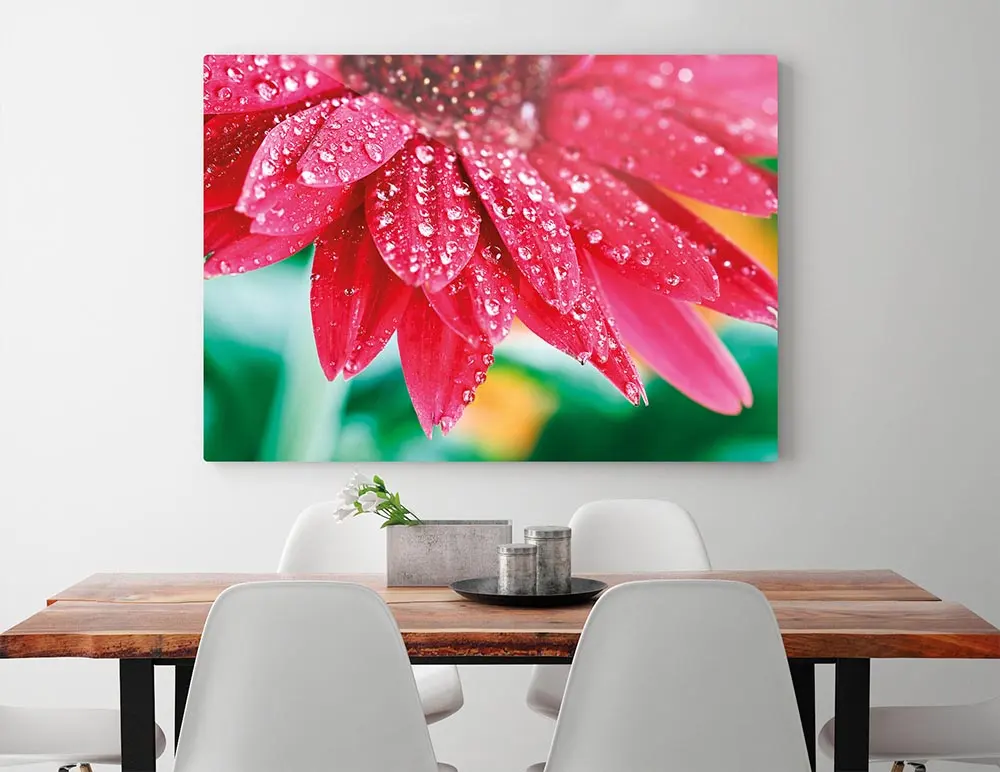
Preparing your digital work for physical media requires attention to color spaces and resolution settings. When starting a new project, always set your canvas to 300 DPI (dots per inch) to ensure the image remains sharp when printed. If you intend to print your work, work in the CMYK color profile rather than the default RGB, as this prevents unexpected color shifts that occur when converting digital files to physical ink-based formats.
Follow these steps for a professional export process:
- Finalize your image and merge necessary layers to reduce file size, keeping a backup of the layered version.
- Select "Share" or "Export" within your application and choose a high-quality format like TIFF, PSD, or high-resolution PNG.
- Verify that the color profile is set to CMYK if sending to a professional printer.
- Transfer the file to a computer or cloud storage using a high-speed connection to maintain metadata integrity before sending it to a print service.
Key facts
- The Apple Pencil Pro features haptic feedback and a barrel roll sensor for precise brush rotation.
- ProMotion technology offers a 120Hz refresh rate, minimizing latency between the stylus tip and digital ink.
- The Liquid Retina XDR display supports 1,600 nits of peak brightness, essential for accurate color grading.
- iPadOS allows for split-screen multitasking, enabling users to reference images while drawing in apps like Procreate.
- Layer-based workflows in professional software allow artists to edit specific elements without altering the entire composition.
- Exporting artwork directly to cloud services or desktop applications facilitates a seamless transition to print or web production.
The bottom line
The iPad Pro serves as a powerful, portable studio for digital artists, combining high-end display technology with professional-grade software. By leveraging the precision of the Apple Pencil and the versatility of layer-based apps, creators can execute complex illustrations anywhere. While it requires an adjustment period for surface texture and file management, it remains the most efficient tool for modern mobile digital art and animation workflows.
People also ask
Is an iPad Pro better than a dedicated graphics tablet?
An iPad Pro is a standalone computer, whereas a traditional graphics tablet requires a connection to a PC or Mac. This portability makes the iPad superior for sketching on location, though desktop tablets often offer larger active areas for studio work.
Which drawing applications are considered industry standards?
Procreate is the most popular choice for illustrators due to its intuitive interface and one-time purchase model. Adobe Fresco and Clip Studio Paint are also widely used for their advanced brush engines and vector support.
Does the screen texture affect the drawing experience?
The glass surface of the iPad can feel slippery, which some artists find difficult to control. Many users apply a matte "paper-like" screen protector to add friction and provide a more tactile, pencil-on-paper sensation.
Can I use the iPad Pro for professional animation?
Yes, apps like Procreate Dreams and Callipeg provide robust frame-by-frame animation tools. These apps utilize the iPad’s processing power to handle multiple layers and complex keyframe movements efficiently.
How do I manage file storage for high-resolution projects?
Professional artists should opt for at least 512GB of storage, as high-resolution canvases with many layers consume significant space. Regularly offloading completed files to external SSDs or cloud storage is a necessary maintenance habit.
What is a common mistake for beginners using the iPad Pro?
A common error is failing to calibrate the color profile or brightness before starting a project. Always check your display settings in a consistent lighting environment to ensure your color choices remain accurate during the final export.
This answer was created with the help of AI research tools and reference sources. Spotted an error? Let us know — we correct mistakes quickly. See our editorial policy.