What resolution should digital art be?
Short answer
Digital art resolution depends entirely on the intended output medium. For screen viewing, 72 to 96 pixels per inch (PPI) is standard. For professional print, 300 dots per inch (DPI) is the industry requirement. Always work at the highest resolution needed for your final project to ensure crisp, high-quality results.
On this page
What resolution is best for digital art?
The choice of resolution is dictated by the final destination of your artwork. Resolution is measured in pixels per inch (PPI) for digital displays and dots per inch (DPI) for physical printing. If you create an image at a low resolution, it will look pixelated or blurry when enlarged. Conversely, creating a file at an unnecessarily high resolution can lead to massive file sizes that slow down your computer’s performance during the creative process.
For most digital projects, you should determine your resolution based on the following standard guidelines:
- Web and social media: 72 to 96 PPI is sufficient for standard monitors.
- High-definition screens: 150 PPI provides better clarity for modern retina displays.
- Professional printing: 300 DPI is the gold standard for high-quality, sharp prints.
- Large-format printing: 150 to 200 DPI is often acceptable for billboards or banners viewed from a distance.
How to choose the right canvas size
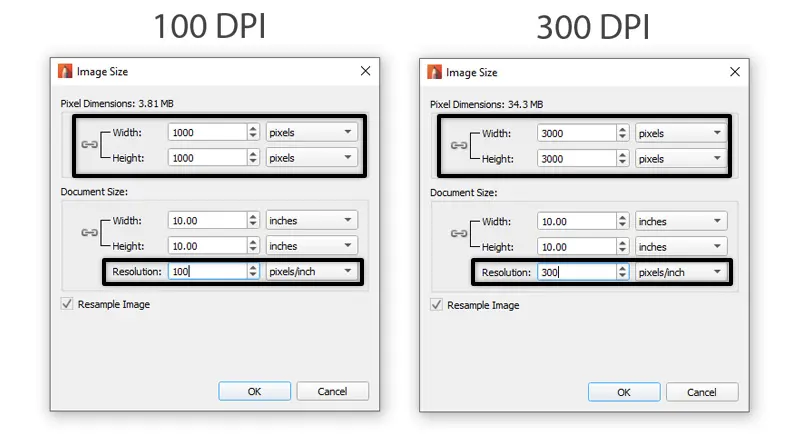
Before you begin drawing, you must define the physical dimensions of your canvas in inches or centimeters alongside the resolution. If you are designing for a specific print size, such as an 8x10 inch photo, you must multiply those dimensions by your target DPI. For an 8x10 print at 300 DPI, your canvas should be at least 2400 by 3000 pixels. Failing to account for these physical dimensions early on will result in a loss of detail if you attempt to scale the image up later.
Follow these steps to calculate your canvas size:
- Determine the final physical size of the output (e.g., 11x17 inches).
- Choose your target resolution (e.g., 300 DPI).
- Multiply the width by the resolution and the height by the resolution.
- Set your software canvas to these pixel dimensions to ensure maximum quality.
Why screen resolution differs from print resolution
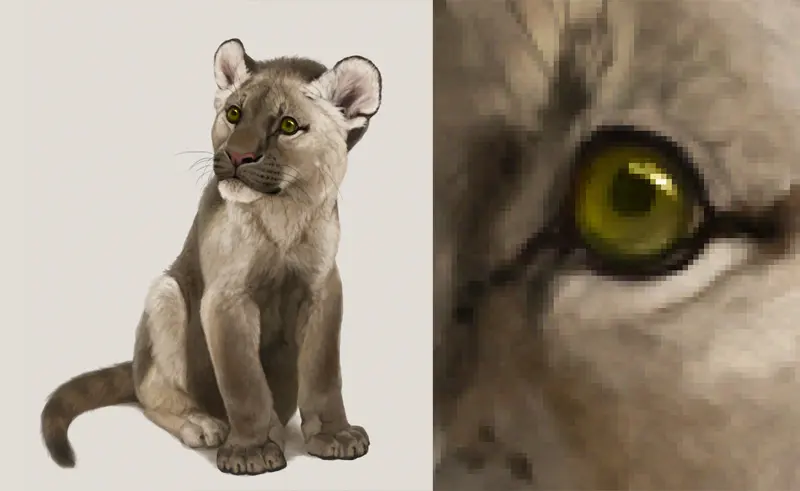
Digital screens and physical printers interpret pixels differently. Screens are composed of a fixed grid of light-emitting pixels, meaning an image that is 1000 pixels wide will always occupy a specific portion of the screen regardless of the PPI setting. Printers, however, use ink droplets to simulate colors, requiring a much higher density of data to achieve smooth gradients and sharp lines. If you send a 72 PPI file to a professional printer, the software will attempt to stretch those few pixels, resulting in visible "stair-stepping" or jagged edges.
Understanding this distinction prevents the common frustration of digital art looking perfect on a monitor but appearing grainy on paper. Monitors have a native resolution that cannot be changed, while print resolution is a variable density that you control. By maintaining a high-resolution master file, you retain the flexibility to export different versions for various platforms without losing the integrity of your original work.
Common mistakes when setting resolution
A frequent error is starting a project at a low resolution and attempting to "upscale" it later. Digital painting software uses interpolation to add pixels when you increase the size of an existing image, which inevitably creates blurriness. Another mistake is forgetting to consider the color profile in tandem with resolution. Mixing up CMYK for print and RGB for screen can lead to color shifts that are just as detrimental to the final product as a low-resolution file.
Avoid these common pitfalls to maintain professional standards:
- Never start a project at 72 DPI if you think you might want to print it later.
- Do not ignore the file size, as extremely high resolutions can crash software on older hardware.
- Avoid using "web-optimized" presets for files intended for high-quality commercial printing.
- Always check the final export settings, as some platforms automatically compress images and reduce resolution.
Best practices for professional digital artists
Professional artists typically work in a non-destructive workflow to protect their assets. This involves keeping a high-resolution "master" file that contains all layers and full-size data. When the work is complete, you can generate smaller, lower-resolution copies for social media or websites while keeping the master file safe for future printing needs. Investing in a high-quality monitor also helps, as it allows you to see the true resolution and color accuracy of your work while you paint.
Consistency is key to a professional portfolio. By establishing a standard resolution workflow, you ensure that every piece of art you produce meets the requirements for any client or gallery. Whether you are creating illustrations for a digital book or preparing files for a gallery show, always prioritize the highest possible resolution from the start. This proactive approach saves time, prevents quality loss, and ensures your digital art remains crisp and professional regardless of how it is ultimately viewed or printed.
Key facts
- Use 72 dots per inch (DPI) for images intended solely for screen viewing.
- Set resolution to 300 DPI for any artwork destined for physical print.
- Always create your canvas at the final intended size to avoid pixelation.
- The standard unit for digital screen dimensions is pixels (px), not inches.
- RGB is the correct color mode for screens; use CMYK for professional printing.
- Vector files, such as SVG or AI, are resolution-independent and can be scaled infinitely.
The bottom line
The ideal resolution for digital art depends entirely on your final output. For screen-based work, prioritize pixel dimensions at 72 DPI to ensure fast loading and compatibility. For print, prioritize a minimum of 300 DPI to guarantee crisp, professional results. By setting your canvas size and resolution correctly at the beginning of your project, you avoid quality loss and ensure your work looks its best everywhere.
People also ask
Does higher resolution always mean better quality?
Not necessarily, as excessively high resolution increases file size without improving visual quality beyond the limits of your display or printer. Aim for the specific resolution required for your final output medium to maintain efficiency.
How do I calculate the pixel dimensions for a print project?
Multiply the physical width and height in inches by the desired DPI. For example, an 8x10 inch print at 300 DPI requires a canvas size of 2400x3000 pixels.
Why does my digital art look blurry when I enlarge it?
Raster images are made of a fixed grid of pixels; scaling them up forces the software to guess new pixel data, which results in blurriness. Use vector software for logos or designs that require frequent resizing.
Is there a standard resolution for social media posts?
Most platforms compress images, so 72 to 96 DPI is standard. Focus on pixel dimensions, such as 1080x1080 for Instagram, rather than worrying about print-specific resolution settings.
Can I convert a low-resolution image to high-resolution later?
You cannot add detail that does not exist. While software can resample images, the result will often appear soft or pixelated compared to a file created at the correct resolution from the start.
What file format is best for preserving resolution?
Use lossless formats like TIFF or PNG for high-quality archival storage. Avoid repeated saving as JPEG, as each save cycle discards data and introduces compression artifacts that degrade image clarity.
This answer was created with the help of AI research tools and reference sources. Spotted an error? Let us know — we correct mistakes quickly. See our editorial policy.