What is palm rejection?
Short answer
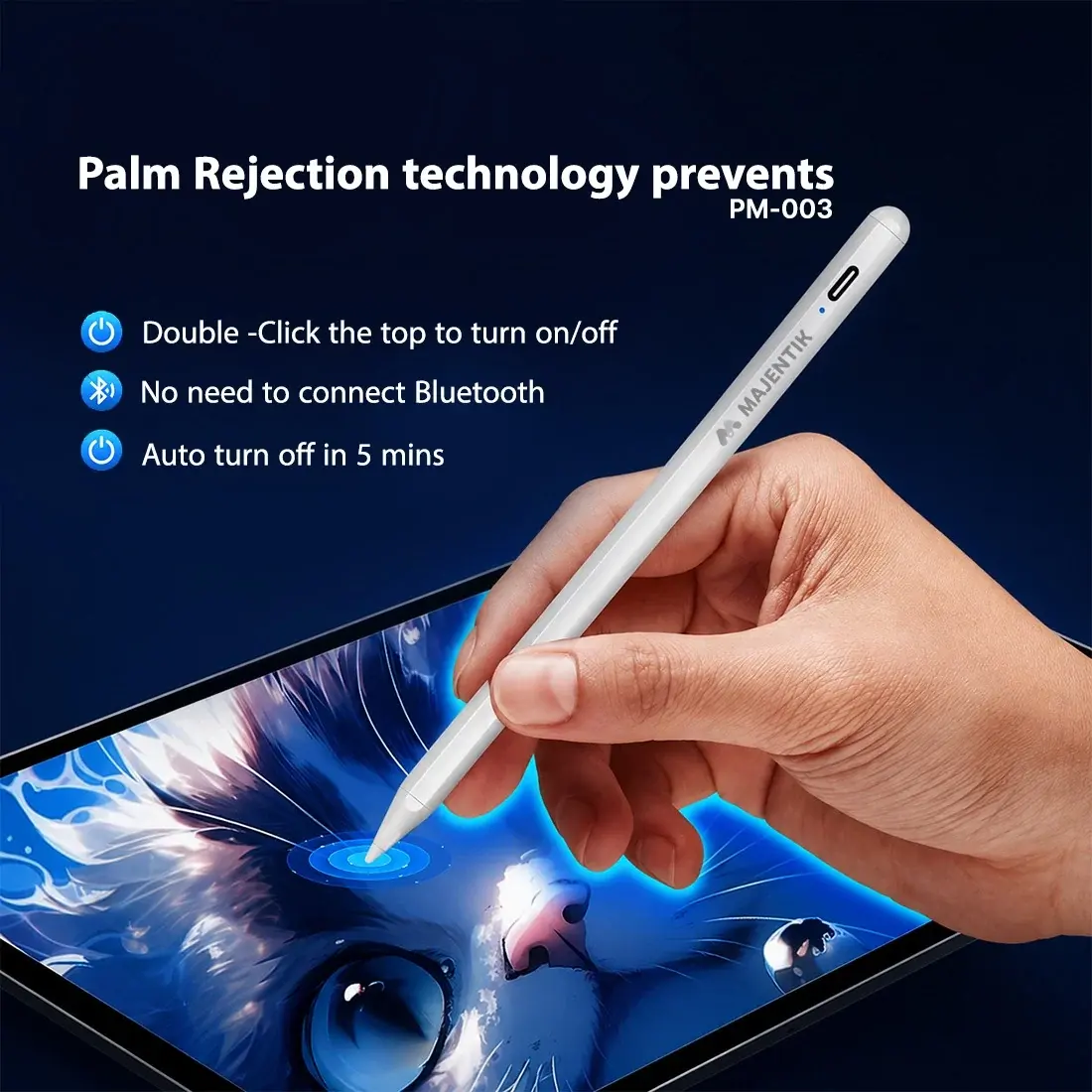
Palm rejection is a technology that allows touchscreens to distinguish between intentional inputs from a stylus or finger and accidental contact from your hand. By ignoring signals generated by a resting palm, devices ensure that only the intended strokes are recorded, providing a natural, pen-on-paper experience for digital artists and note-takers.
On this page
How does palm rejection work?
Modern touchscreens utilize capacitive sensing technology, which detects the electrical conductivity of human skin. When you touch a screen, the device identifies the specific location and size of the contact point. Palm rejection works by analyzing the shape and surface area of these inputs. A stylus tip creates a small, precise point, whereas a palm creates a large, irregular contact patch.
The software running on the tablet or smartphone constantly monitors these inputs in real time. Once the system identifies a large contact area consistent with a palm, it ignores all input signals originating from that specific region. This allows the device to process the fine, deliberate movements of a stylus while simultaneously disregarding the heavy pressure of a hand resting on the glass. This sophisticated filtering process happens in milliseconds, ensuring that the user experience remains fluid and responsive during long drawing or writing sessions.
Why does palm rejection fail?
Palm rejection is not a perfect science and can occasionally misinterpret inputs, leading to stray marks or ignored strokes. Several factors contribute to these failures, including hardware limitations and environmental conditions. If a stylus is not held at the correct angle, or if the screen is covered in oil, moisture, or debris, the device may struggle to differentiate between the stylus and the palm.
Common technical issues that interfere with accurate detection include:
- Low-quality or non-compatible styluses that do not transmit the necessary signal protocols.
- Screen protectors that are too thick or made of materials that interfere with capacitive sensitivity.
- Software glitches or outdated firmware that fail to calibrate the touch sensor properly.
- Static electricity buildup on the screen surface, which can confuse the input sensors.
When these variables align, the device may accidentally register a palm touch as a brush stroke or, conversely, fail to register a deliberate stylus input because it is being masked by the nearby palm.
How to improve palm rejection performance
If you are experiencing frequent errors, there are several practical steps you can take to optimize your device's performance. Most modern tablets, such as the Apple iPad or Samsung Galaxy Tab, have built-in settings that allow you to calibrate the touch sensitivity. Ensuring your software is updated to the latest version is the most effective way to receive improved palm rejection algorithms issued by the manufacturer.
Follow these steps to enhance your experience:
- Clean your screen thoroughly with a microfiber cloth to remove skin oils and dust.
- Check your device settings to ensure "Palm Rejection" or "Ignore Touch Input" is enabled.
- Use a high-quality, active stylus designed specifically for your tablet model.
- If using a third-party app, look for a "Stylus Only" mode in the application's settings menu.
By isolating the input to only the stylus, you effectively disable the screen's ability to react to your hand, providing a foolproof way to prevent accidental marks.
Common mistakes when using palm rejection
Many users inadvertently cause palm rejection failures by adopting poor posture or using incompatible accessories. One frequent mistake is wearing gloves that are too thick or made of materials that do not conduct electricity, which can confuse the device's sensor arrays. Another common error is resting the hand on the screen before the stylus makes contact, which can lead the software to prioritize the palm as the primary input source.
Avoid these common pitfalls to maintain consistent performance:
- Resting your palm on the screen before the stylus tip touches the glass.
- Using a stylus that lacks palm rejection support on a device that requires proprietary hardware.
- Applying excessive pressure with the palm, which can create a larger signal footprint than the software is calibrated to ignore.
- Allowing your skin to bridge the gap between the stylus and the screen edge, which can create a continuous electrical path that masks the stylus signal.
Best tools for better palm rejection
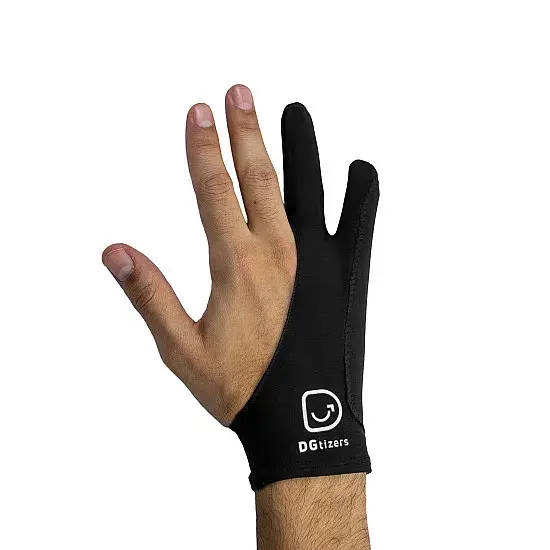
For users who still face issues, physical tools can provide a reliable solution that bypasses software limitations entirely. A classic artist’s solution is the "drawing glove," a specialized accessory that covers the pinky and ring finger. Because these gloves are made of non-conductive materials, they prevent the skin from creating a signal on the capacitive screen, effectively forcing the device to ignore the hand.
Additionally, choosing the right software can significantly improve your workflow. Many professional-grade applications, such as Procreate, GoodNotes, or Concepts, feature custom palm rejection settings that allow you to adjust the "palm size" threshold. By tailoring these settings to your specific hand size and writing style, you can achieve a much higher level of precision. Investing in a screen protector with a matte texture can also help, as it provides a slight physical barrier and improves the friction between the stylus and the screen, which helps the device distinguish between the light touch of a pen and the heavy, flat contact of a palm.
Key facts
- Palm rejection is a software feature that ignores accidental touch input from a hand resting on a touchscreen while using a stylus.
- It relies on digitizers that distinguish between the small, precise point of a stylus tip and the larger, irregular shape of a palm.
- Most modern tablets, such as the Apple iPad Pro and Microsoft Surface Pro, include hardware-level palm rejection by default.
- If your device struggles with palm rejection, wearing a specialized artist’s glove—which covers the pinky and ring finger—can prevent stray marks.
- Adjusting your grip to ensure the stylus touches the screen before your palm helps the device prioritize the pen input signal.
- Disabling "Touch Gestures" or "Finger Painting" in specific drawing apps often improves accuracy by forcing the screen to ignore skin contact entirely.
The bottom line
Palm rejection is an essential technology that allows users to rest their hands comfortably on a touchscreen while writing or drawing with a stylus. By filtering out the broad contact area of a palm, devices can focus exclusively on the precise input of the pen. When issues arise, simple adjustments like updating software, cleaning the screen, or using an artist's glove can significantly improve your digital workflow.
People also ask
Does palm rejection work with all types of styluses?
No, it generally requires an active stylus that communicates with the screen's digitizer. Passive, rubber-tipped "capacitive" pens are rarely supported because the screen cannot distinguish them from a finger.
Can I turn off palm rejection on my tablet?
Most operating systems do not allow you to disable palm rejection because it is essential for basic usability. However, some professional drawing applications offer settings to toggle touch input on or off depending on your preference.
Why does my screen register stray dots when I write?
This often happens if your palm touches the glass before the stylus tip makes contact. Ensure the pen is close enough to the screen to be detected before resting your hand down.
Do I need a screen protector for palm rejection to work?
Thick or low-quality screen protectors can interfere with the digitizer's ability to sense the stylus. If you experience issues, ensure your protector is compatible with active pen technology.
Is palm rejection only for artists?
While artists benefit most, it is also vital for students and professionals using tablets for digital note-taking. It allows for a natural handwriting experience similar to using a pen and paper.
What should I do if my palm is still causing issues?
Check for software updates for your tablet's operating system, as manufacturers frequently release firmware patches to improve touch sensitivity. Also, ensure your screen is clean, as oils and debris can sometimes confuse touch sensors.
This answer was created with the help of AI research tools and reference sources. Spotted an error? Let us know — we correct mistakes quickly. See our editorial policy.