How does Wi-Fi work?
Short answer
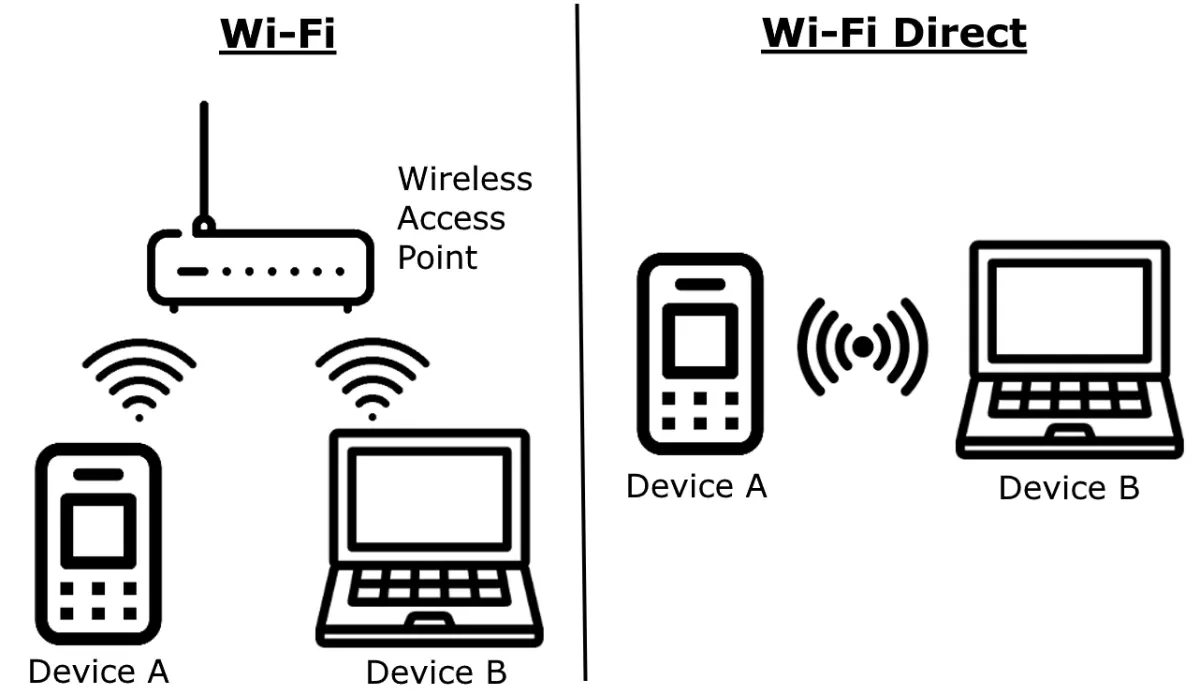
Wi-Fi works by converting digital data into radio waves transmitted through the air. A router receives an internet signal via a physical cable, then broadcasts it wirelessly to devices like laptops and phones. These devices capture the radio frequencies, translate them back into data, and allow for seamless wireless network connectivity.
On this page
How does Wi-Fi transmit data wirelessly
Wi-Fi functions as a two-way radio communication system operating on specific frequencies, typically 2.4 GHz, 5 GHz, or 6 GHz. When you request a webpage, your device sends a signal to the wireless router, which acts as a bridge between your local network and the global internet. The router translates these digital packets into radio waves, sending them out through its antennas at the speed of light.
The process relies on the IEEE 802.11 standards, which dictate how data is encoded and transmitted to ensure compatibility between different manufacturers. Once the router broadcasts the signal, your device’s internal wireless adapter detects the radio waves and converts them back into binary code. This exchange happens almost instantaneously, allowing for high-speed data transfer without the need for physical Ethernet cables connecting every piece of equipment in your home or office.
What affects Wi-Fi signal strength
Several environmental factors can significantly degrade the quality of your wireless connection. Physical obstructions are the most common culprits, as radio waves struggle to penetrate dense materials like concrete, brick, or metal. Additionally, electronic interference from household appliances—such as microwaves, baby monitors, or cordless phones—can disrupt the 2.4 GHz frequency band, leading to slower speeds or frequent disconnections.
Distance also plays a critical role in performance. As the signal travels further from the router, it naturally weakens, resulting in lower throughput and higher latency. To optimize your coverage, consider the following strategies:
- Place your router in a central, elevated location away from walls.
- Keep the router at least three feet away from other large electronic devices.
- Use a mesh Wi-Fi system to extend the signal into larger homes or areas with thick walls.
- Switch to the 5 GHz or 6 GHz band if your device supports it, as these offer faster speeds with less interference.
How to set up a home network
Establishing a reliable home network requires careful placement and configuration. Start by connecting your modem to the internet service provider's wall outlet, then link the router to the modem using an Ethernet cable. Once powered on, use a computer or smartphone to access the router's web-based interface, usually found by typing a specific IP address into your browser.
Follow these steps to ensure a secure and efficient setup:
- Log in to the router’s administration panel using the default credentials provided by the manufacturer.
- Change the default network name (SSID) and create a strong, unique password to prevent unauthorized access.
- Enable WPA3 encryption, or WPA2 if your devices are older, to secure your data traffic.
- Update the router’s firmware to the latest version to patch security vulnerabilities and improve stability.
- Choose a specific channel in the settings if your area has high network congestion from neighbors.
Why Wi-Fi connections drop or slow down
Connection issues often stem from network congestion or outdated hardware. If too many devices are streaming high-definition video or downloading large files simultaneously, the router may become overwhelmed, causing a bottleneck. Furthermore, if you are using an older router that does not support modern standards like Wi-Fi 6 (802.11ax), it may struggle to handle the number of concurrent connections required by a modern smart home.
Another frequent cause of instability is IP address conflicts or outdated cache files within the router. Performing a simple power cycle—unplugging the router for 30 seconds and plugging it back in—can often clear these temporary glitches. If problems persist, check if your ISP is experiencing an outage or if the physical cable connecting your modem to the wall is damaged or loose. Monitoring your data usage can also help determine if you have exceeded your monthly service provider limits.
Common mistakes when using Wi-Fi
Many users inadvertently hinder their own connectivity by neglecting basic maintenance or placement rules. One frequent error is hiding the router inside a cabinet or behind a television, which acts as a shield and blocks the signal from reaching other rooms. Another mistake is failing to change the default administrative password, which leaves the network vulnerable to hackers who can easily gain control of your internet traffic.
To maintain a healthy and secure wireless environment, avoid these common pitfalls:
- Do not ignore firmware update notifications, as these often contain vital security patches.
- Avoid using "open" or unsecured networks in public spaces, as your data can be intercepted by others.
- Do not place the router on the floor, as signals propagate best from an elevated position.
- Refrain from using outdated security protocols like WEP, which can be cracked in seconds by modern software.
- Do not assume that a signal booster will solve all problems, as they often halve the bandwidth of the original connection.
Key facts
- Wi-Fi uses radio waves in the 2.4 GHz and 5 GHz frequency bands to transmit data wirelessly between devices.
- The technology is based on the IEEE 802.11 standard, first released in 1997 to allow interoperability between wireless devices.
- A router acts as a bridge, converting incoming internet data from a cable or fiber line into radio signals.
- Walls, floors, and large metal objects can physically block or weaken Wi-Fi signals, leading to slower connection speeds.
- To improve coverage, place your router in a central, elevated location away from thick concrete or electronic interference.
- Always use WPA3 or WPA2 encryption settings on your network to prevent unauthorized users from accessing your data.
The bottom line
Wi-Fi functions by converting digital data into radio waves that travel through the air, allowing devices to communicate with a central router. By understanding the limitations of frequency bands and the impact of physical obstructions, you can optimize your home network for better performance. Secure your connection with strong encryption and proper placement to ensure a reliable, fast, and safe internet experience for all your connected devices.
People also ask
Why is my Wi-Fi speed slower than what I pay for?
Speed drops often occur due to signal interference from neighbors' networks, physical obstructions, or outdated router hardware. You can test your actual speed using online tools while standing next to the router to isolate the issue.
What is the difference between 2.4 GHz and 5 GHz bands?
The 2.4 GHz band covers a longer range and penetrates walls better, but it is prone to interference from household appliances. The 5 GHz band provides much faster data speeds but has a shorter range and struggles to pass through solid objects.
How do I choose a strong password for my Wi-Fi?
Create a password that is at least 12 characters long, combining uppercase letters, lowercase letters, numbers, and symbols. Avoid using personal information like your name or birthdate, which are easy for automated hacking tools to guess.
Do I need a mesh Wi-Fi system?
Mesh systems are ideal for large homes or buildings with thick walls where a single router cannot provide consistent coverage. They use multiple nodes to create a single, seamless network that eliminates dead zones throughout your space.
Can my neighbors steal my Wi-Fi?
If your network is unsecured or uses a weak password, neighbors or passersby can connect to your internet and use your bandwidth. This can slow down your connection and potentially expose your personal devices to security risks.
How often should I restart my router?
Restarting your router every few months or when you experience connection drops can clear its temporary memory and install necessary updates. This simple power cycle often resolves minor software glitches that cause the device to hang.
This answer was created with the help of AI research tools and reference sources. Spotted an error? Let us know — we correct mistakes quickly. See our editorial policy.