Is Krita good for beginners?
Short answer
Krita is an excellent, professional-grade choice for beginners, especially those on a budget. As free, open-source software, it offers a robust feature set comparable to industry standards like Adobe Photoshop. While its interface can feel overwhelming initially, its extensive community support and specialized tools make it a powerful starting point for digital artists.
On this page
Is Krita free and easy to download?
Krita is entirely free and open-source software, released under the GNU General Public License. Unlike subscription-based software that requires monthly payments, Krita provides access to all professional tools without any hidden costs or paywalls. This makes it a highly accessible entry point for students, hobbyists, and aspiring professionals who want to experiment with digital painting without financial commitment.
To begin, you can download the software directly from the official Krita website. It is compatible with Windows, macOS, and Linux systems. Once installed, the program is ready for immediate use, and you do not need to create an account or provide personal information to access the full suite of features.
- Navigate to the official Krita website.
- Select the "Download" tab in the navigation menu.
- Choose the version that matches your operating system.
- Run the installer and follow the on-screen prompts to complete the setup.
How long does it take to learn Krita?
The time required to master Krita depends on your prior experience with graphic design software. Beginners familiar with basic layer-based editing can typically grasp the core functions within a few days of consistent practice. However, because Krita is packed with advanced features like brush engines, vector tools, and animation timelines, it may take several weeks to feel fully comfortable with its entire workflow.
Consistency is more important than duration when learning the interface. By dedicating thirty minutes a day to exploring specific tools, you will progress much faster than by attempting to learn everything at once. Many users find that focusing on one aspect of the software—such as brush customization or layer blending modes—helps prevent the feeling of being overwhelmed by the complex menu structure.
- Start by learning how to use layers and blending modes.
- Practice basic brush strokes and pressure sensitivity settings.
- Explore the "Docker" menu to customize your workspace layout.
- Watch official Krita tutorials to understand the tool icons.
What are the best features for beginners?
Krita is specifically designed for digital painting, which sets it apart from general-purpose photo editors. One of its most helpful features for beginners is the "Pop-up Palette," which appears when you right-click on the canvas. This allows you to quickly select colors and brushes without navigating through cluttered sidebars, significantly speeding up the creative process and keeping your focus on the artwork.
Another standout tool is the "Stabilizer," which helps smooth out shaky lines. This is particularly useful for beginners who have not yet developed steady muscle memory for digital drawing. Additionally, Krita includes a vast library of default brushes, ranging from pencils and charcoals to complex textured oil paints, allowing you to experiment with different traditional art styles immediately after installation.
- The Pop-up Palette for rapid tool and color selection.
- Brush stabilizers for cleaner, more professional line art.
- A wide array of customizable brush presets.
- Non-destructive editing through the use of filter layers.
Common mistakes when starting with Krita
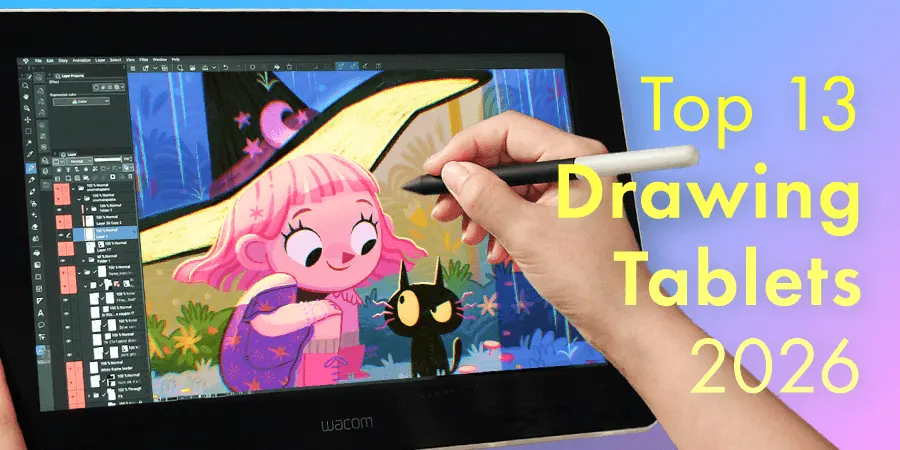
A frequent mistake beginners make is failing to calibrate their graphics tablet correctly. Krita relies on pressure sensitivity to mimic real-world media, and if the driver is not configured, the brush will behave like a standard mouse click. Always check the "Tablet Input" settings in the preferences menu to ensure that your hardware is communicating properly with the software before you begin your first project.
Another common error is working entirely on a single layer. Digital art relies on layer management to allow for corrections without damaging the underlying work. Beginners often forget to create new layers for line art, base colors, and shading, which makes it nearly impossible to fix mistakes later. Always organize your project by separating your sketch, line work, and color layers to maintain total control over your final composition.
- Do not draw everything on the background layer.
- Remember to save your work frequently in the .kra format.
- Avoid overcomplicating your workspace by opening too many dockers.
- Check your brush settings if the stroke feels laggy or unresponsive.
Why is Krita better than other free software?
Krita stands out because it is built by artists for artists. While other free programs often focus on basic photo manipulation, Krita is a dedicated painting application. It supports advanced color management, which is essential for artists who intend to print their work. The software handles high-resolution canvases with ease, ensuring that your digital paintings remain crisp and detailed regardless of the size of your final output.
Furthermore, the community surrounding Krita is incredibly active. Because it is open-source, there are thousands of free custom brushes, textures, and plugins created by users that you can import into your own installation. This expandability means that as your skills grow, the software grows with you. You will not outgrow Krita quickly, making it a sustainable choice for your long-term artistic development and professional portfolio building.
Key facts
- Krita is free, open-source software released under the GNU General Public License, meaning it costs nothing to use.
- The program was first released in 2005 and is supported by a global community of developers and artists.
- It features over 100 professionally designed brushes, including pencil, charcoal, and oil paint simulations.
- Beginners should prioritize learning the "Layers" panel first, as it allows for non-destructive editing of artwork.
- The software supports industry-standard file formats like PSD (Photoshop), PNG, JPEG, and TIFF.
- Users can customize the workspace layout to hide complex tools, reducing visual clutter for those just starting out.
The bottom line
Krita is an excellent choice for beginners because it provides professional-grade tools without a financial barrier. While the interface may appear complex initially, its ability to be customized makes it accessible for those willing to learn. By focusing on fundamental skills like layers and brush settings, new artists can quickly produce high-quality work, making it a highly practical and cost-effective starting point for any digital illustrator.
People also ask
Does Krita require a drawing tablet to use?
While a mouse works for basic tasks, a pressure-sensitive graphics tablet is highly recommended for digital painting. Tablets allow you to control line thickness and opacity by varying the pressure of your pen.
Is Krita better than Adobe Photoshop for beginners?
Krita is specifically built for digital painting and illustration, whereas Photoshop is a general-purpose image editor. Krita is often considered more intuitive for artists because its interface is dedicated solely to creative drawing tools.
Can I use Krita on a tablet or mobile device?
Krita is officially supported on Windows, macOS, and Linux desktop environments. While a version exists for Android tablets, it is not currently available for iPhones or iPads.
How do I learn to use Krita effectively?
The official Krita website provides a comprehensive manual and a series of video tutorials. Many independent artists also share specialized "getting started" guides on platforms like YouTube.
Is my computer powerful enough to run Krita?
Krita is relatively lightweight, but it performs best with at least 8GB of RAM. If you plan to work on very large canvases with many layers, 16GB of RAM is preferred for smooth performance.
Can I animate in Krita?
Yes, Krita includes a dedicated animation workspace with onion-skinning and frame-by-frame editing tools. It is a capable entry-level program for creating 2D hand-drawn animations.
This answer was created with the help of AI research tools and reference sources. Spotted an error? Let us know — we correct mistakes quickly. See our editorial policy.