What file format is best for digital art?
Short answer
The best file format for digital art depends on your specific goal. Use PSD or TIFF for professional, layered working files to preserve editability. For sharing or displaying art online, JPEG is standard for photos, while PNG is essential for graphics requiring transparency or high-quality, lossless compression without artifacts.
On this page
Which file format is best for working on digital art?
When you are actively creating digital art, your primary goal is to preserve every layer, adjustment, and filter for future modification. Proprietary formats like Adobe Photoshop’s PSD or the open-standard TIFF are the industry gold standards for this purpose. These formats support high bit depths, complex layer structures, and non-destructive editing, which are vital for professional workflows.
Saving in a flat format like JPEG while you are still working will permanently merge your layers, making it impossible to adjust individual elements later. Always maintain a "master" file in a layered format until the piece is finished. You should follow these best practices for managing your active projects:
- Create a dedicated folder for each project to store your master files.
- Use a clear naming convention, such as "ProjectName_v01," to track your progress.
- Back up your master files to an external drive or cloud storage regularly.
- Periodically save a flattened copy as a backup in case the primary file becomes corrupted.
How to choose the right format for sharing online?
Once your artwork is finalized, you must choose a format that balances visual quality with file size. JPEG is the most widely supported format globally and is ideal for photographic art or complex paintings with millions of colors. It uses "lossy" compression, which discards invisible data to reduce file size, making it perfect for websites that need to load quickly.
However, JPEG is not suitable for images with sharp edges, text, or transparent backgrounds. For those needs, PNG is the superior choice because it uses "lossless" compression, ensuring no data is lost during the saving process. PNG-24 or PNG-32 files also support alpha channels, allowing you to export art with transparent backgrounds, which is essential for web design, stickers, or digital overlays.
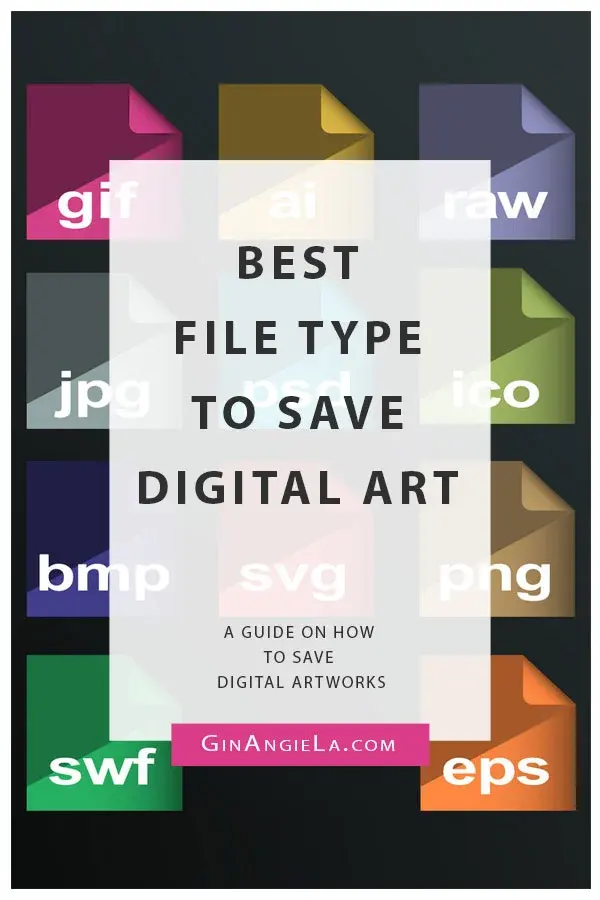
What are the differences between raster and vector formats?
Digital art is generally divided into two categories: raster and vector. Raster images, such as JPEGs and PNGs, are composed of a fixed grid of pixels. If you scale a raster image beyond its original dimensions, it will become blurry or pixelated. This is why it is crucial to work at the final intended resolution from the start.
Vector formats, such as SVG or AI, are fundamentally different because they use mathematical equations to define lines, shapes, and colors. Because they are defined by geometry rather than pixels, vector art can be scaled to any size without losing quality. This makes vectors the best choice for logos, icons, and typography. If you are creating art that needs to be printed on everything from business cards to giant billboards, vector formats are the only professional option.
Common mistakes when saving digital art
One of the most frequent errors artists make is saving their work using a format that lacks the necessary metadata or color profiles. When you save a file for the web, ensure you convert your color mode to sRGB. If you leave your art in Adobe RGB or ProPhoto RGB, colors may appear dull or distorted when viewed in standard web browsers.
Another common mistake is over-compressing files to save space. While smaller files load faster, aggressive compression leads to "artifacts," which are blocky, blurry distortions that ruin the clarity of your work. Always check the preview window before finalizing your export settings. Follow these steps to ensure your export is optimized:
- Open your export settings menu in your software.
- Select the appropriate format based on your content (PNG for transparency, JPEG for photos).
- Adjust the quality slider to find the "sweet spot" where the file size is low but the visual quality remains crisp.
- Ensure the color profile is set to sRGB to maintain color accuracy across different devices.
When should you use specialized formats like TIFF or RAW?
While JPEGs and PNGs are standard for the web, professional artists and photographers often rely on specialized formats like TIFF or RAW for high-end output. TIFF is a flexible, high-resolution format that supports layers and is often required by print shops for high-quality physical reproduction. It is the safest choice when you need to ensure that your colors and details are preserved exactly as you intended for a gallery print.
RAW files, commonly generated by digital cameras or high-end scanners, contain the unprocessed data directly from the sensor. While you cannot "open" a RAW file as an image directly, it provides the most latitude for color correction and exposure adjustments in software like Lightroom or Capture One. Once you have finished your edits in these programs, you can export the final image into a standard format like JPEG or TIFF for distribution. Understanding these specialized formats allows you to maintain the highest possible fidelity throughout your entire creative pipeline.
Key facts
- PSD (Photoshop Document) is the professional standard for working files because it preserves all layers, masks, and adjustment settings.
- PNG (Portable Network Graphics) is the best choice for web images because it supports transparency and uses lossless compression.
- JPEG (Joint Photographic Experts Group) is ideal for photographs or final exports where small file size is more important than perfect quality.
- TIFF (Tagged Image File Format) is the gold standard for high-quality printing, as it supports CMYK color modes and high bit depths.
- SVG (Scalable Vector Graphics) is essential for logos or icons because it uses mathematical paths instead of pixels, allowing for infinite resizing.
- Always save your work in the native format of your software first, then export a copy for sharing or printing to avoid losing data.
The bottom line
The best file format depends entirely on your project's destination. Use PSD or your software's native format to preserve layers while you work. Choose PNG for web transparency and JPEG for small, shareable files. For professional printing, rely on TIFF to maintain high color fidelity. By matching your file format to the final output, you ensure your digital art remains professional, crisp, and visually accurate every time.
People also ask
Should I use JPEG for digital art with text?
No, JPEG uses lossy compression that creates "artifacts" or blurriness around sharp edges like text. Use PNG or TIFF instead to ensure your text remains crisp and legible.
Why does my art look different when I upload it to social media?
Platforms often automatically compress images to save server space, which can dull colors or introduce noise. Export your files in the exact dimensions and color profile, usually sRGB, requested by the site.
What is the difference between RGB and CMYK?
RGB is a color model for screens using light, while CMYK is for physical printing using ink. Always convert your file to CMYK before sending it to a professional printer to ensure color accuracy.
Read the full answer →Can I use a GIF for high-quality digital painting?
GIF is limited to only 256 colors, making it unsuitable for detailed digital paintings with gradients. It is best reserved for simple animations or pixel art with a limited color palette.
How do I choose the right resolution?
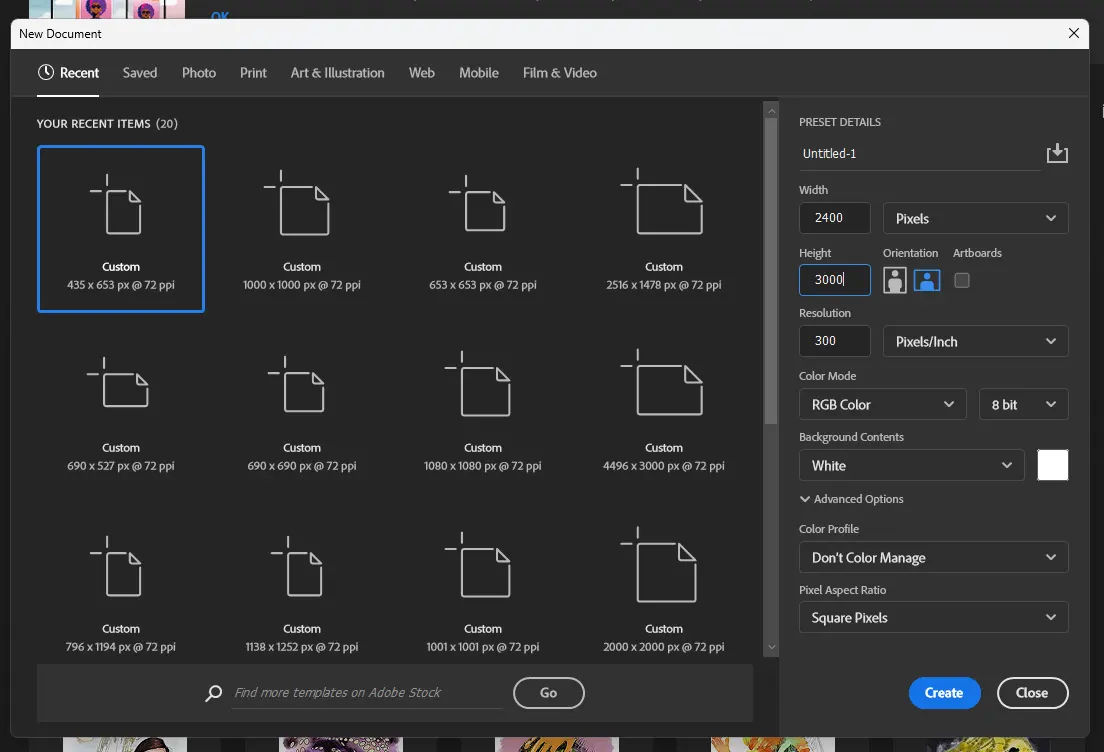
For screens, 72 to 96 pixels per inch (PPI) is sufficient. For high-quality prints, you must use at least 300 PPI to prevent the image from appearing pixelated on paper.
Is it okay to save my work as a JPEG repeatedly?
Avoid this, as every time you save a JPEG, the compression process discards more data, leading to permanent quality degradation. Only save as a JPEG once at the very end of your workflow.
This answer was created with the help of AI research tools and reference sources. Spotted an error? Let us know — we correct mistakes quickly. See our editorial policy.