Can you draw in Blender?
Short answer
Yes, you can draw directly in Blender using the Grease Pencil toolset. It allows for 2D animation and illustration within a 3D environment. You can draw on flat planes or directly onto 3D surfaces, combining traditional artistic techniques with powerful 3D camera movements, lighting effects, and spatial depth for unique creative results.
On this page
How does Grease Pencil work in Blender?
Grease Pencil is a specialized object type in Blender that acts as a bridge between 2D hand-drawn animation and 3D modeling. Unlike standard image editors, it stores strokes as vector data, which means you can scale, rotate, and deform your drawings without losing quality. When you enter Draw Mode, you can use various brushes to create lines, fills, and textures that exist as objects within your 3D scene.
Because these drawings exist in 3D space, you can place them at different depths, allowing you to create parallax effects or build entire environments made of flat, hand-drawn assets. You can also attach these drawings to 3D meshes, meaning the art will move and deform alongside the model. This integration makes it a favorite tool for storyboard artists and animators who want to blend the tactile feel of sketching with the technical precision of 3D computer graphics.
How to start drawing in Blender
To begin your first project, you must first create a Grease Pencil object. This acts as a container for your strokes and layers, similar to how layers function in software like Photoshop or Krita. Once the object is created, you can select your brush, adjust the pressure sensitivity for your tablet, and start sketching on the default plane.
- Open Blender and go to the top menu, selecting Add, then Grease Pencil, and finally Blank.
- Switch your workspace to the 2D Animation tab for a simplified interface tailored to drawing.
- Select the Draw tool from the left-hand toolbar and choose a brush from the top settings bar.
- Use your graphics tablet to draw on the screen, adjusting the stroke thickness and opacity as needed.
- Press Tab to switch between Object Mode and Draw Mode to manage your strokes effectively.
Best brushes and tools for beginners
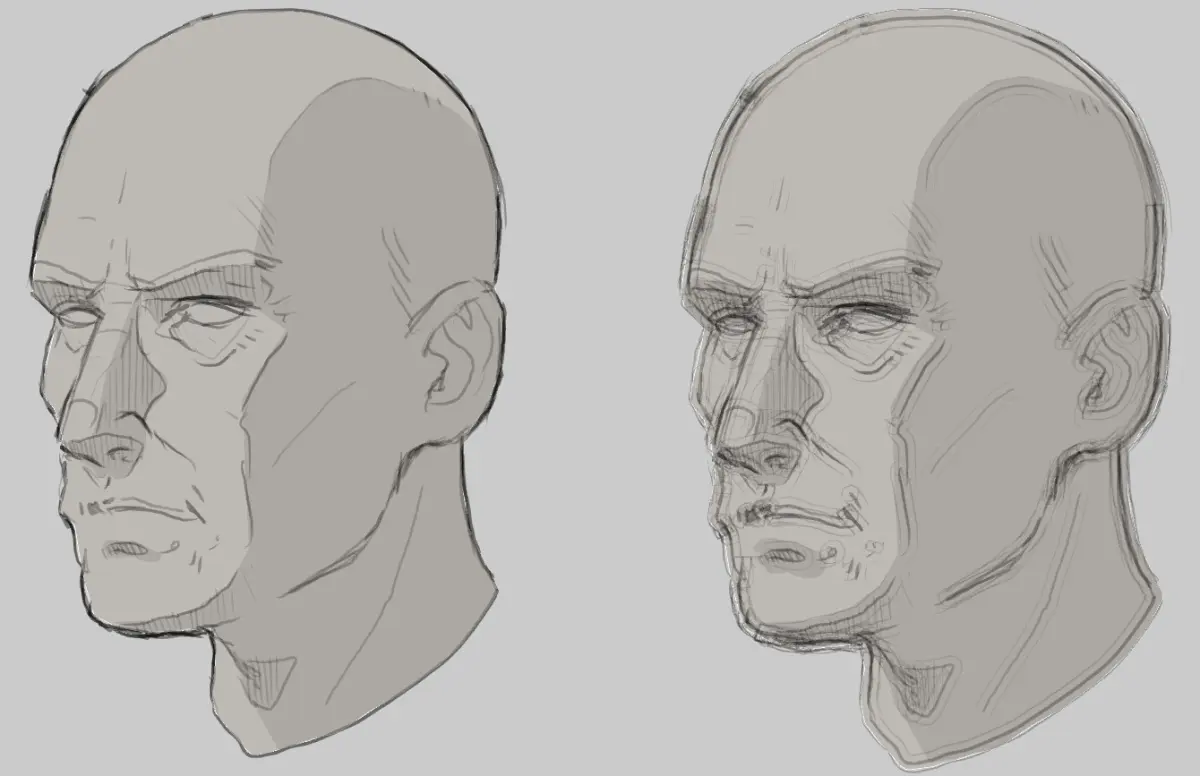
Blender comes with a variety of pre-configured brushes that simulate traditional media like pencils, pens, and markers. The Pencil brush is ideal for sketching, while the Ink Pen provides clean, sharp lines for final line art. You can also use the Fill tool to quickly add color to closed shapes, which significantly speeds up the coloring process compared to manual shading.
- Pencil: Best for rough layouts and initial sketches.
- Ink Pen: Provides a consistent, solid line for professional-looking outlines.
- Airbrush: Useful for soft shading and adding gradients to your drawings.
- Fill Tool: Automatically detects boundaries to color enclosed areas instantly.
- Eraser: Essential for cleaning up overlapping lines or fixing mistakes.
Experimenting with these brushes is the fastest way to understand how Blender handles stroke pressure and texture. Beginners should start by creating a simple character or object to get comfortable with the interface before attempting complex animations.
Why drawing in 3D space is different
Drawing in 3D space introduces the concept of depth, which can be both a powerful feature and a major hurdle for newcomers. By default, Blender places your strokes on a 2D plane, but you can change the "Stroke Placement" settings to draw on surfaces, along the cursor, or even in a 3D view where strokes exist at various distances from the camera. This allows for depth-of-field effects where foreground elements appear sharp while background elements blur.
However, this freedom often confuses users who are used to traditional 2D canvases. If you accidentally draw a stroke far behind your intended subject, it may vanish or appear distorted when you move the camera. Always keep an eye on your viewport orientation and use the "Origin" settings to ensure your drawings are placed exactly where you intend them to be. Mastering the spatial relationship between your strokes and the 3D environment is the key to creating professional-grade work.
Common mistakes when drawing in Blender
The most frequent error beginners make is failing to manage layers effectively. Because Grease Pencil objects can become cluttered quickly, it is vital to keep your line art, colors, and background elements on separate layers. If you draw everything on a single layer, editing or recoloring specific parts of your artwork becomes nearly impossible later in the process.
- Drawing on a single layer: Always separate your sketch, line art, and colors.
- Ignoring stroke pressure: If your lines look uniform and robotic, check your tablet driver settings.
- Forgetting to save: Blender does not always auto-save complex projects, so save manually and often.
- Overcomplicating the scene: Start with simple shapes before adding complex modifiers or 3D geometry.
- Misunderstanding Onion Skinning: Learn to use this feature to see previous frames for smooth animation.
By avoiding these pitfalls, you can maintain a clean workflow that allows for easier adjustments. Remember that Blender is a complex tool, and taking the time to organize your project files will save you significant frustration as your drawings grow in complexity and detail.
Key facts
- Blender includes a dedicated toolset called Grease Pencil that allows for 2D animation and drawing within a 3D environment.
- Grease Pencil objects function as vector-based strokes that can be manipulated, scaled, and rotated like 3D geometry.
- You can draw directly onto 3D surfaces or in empty 3D space to create complex spatial sketches.
- The software supports layers, onion skinning, and frame-by-frame animation, making it a professional-grade 2D production tool.
- Drawing in Blender requires a graphics tablet for pressure sensitivity, as mouse-based strokes lack the necessary organic variation.
- A common mistake is forgetting to set the stroke placement to "Surface" or "Origin," which can cause lines to appear in unintended locations.
The bottom line
Blender is a powerful, versatile application that effectively bridges the gap between 2D artistry and 3D production. By utilizing the Grease Pencil toolset, artists can create everything from simple sketches to complex, frame-by-frame animations within a three-dimensional space. Whether you are a traditional illustrator or a 3D modeler, mastering these drawing tools provides a unique, hybrid workflow that is both highly efficient and creatively expansive.
People also ask
Is Blender only for 3D modeling?
No, Blender is a comprehensive suite that includes 2D drawing, video editing, and compositing tools. Its Grease Pencil feature has turned it into a legitimate alternative for traditional 2D animation software.
Do I need a drawing tablet to use Grease Pencil?
While you can draw with a mouse, a pressure-sensitive graphics tablet is highly recommended. It allows for natural line weight variations and better control over the stroke's opacity and size.
Can I export my 2D drawings from Blender?
Yes, you can export your work as image sequences, video files, or even as SVG vector files. This makes it easy to integrate your drawings into other design workflows.
How do I start drawing in Blender?
You can start by selecting "2D Animation" from the initial splash screen when opening the software. This automatically sets up the workspace with the necessary tools and viewport settings.
Can I combine 2D drawings with 3D objects?
Absolutely, as Blender is designed to integrate both. You can draw 2D characters that move through 3D environments or use 3D objects as guides for your 2D perspective.
Are there different types of brushes in Grease Pencil?
Yes, Blender comes with a variety of preset brushes including pencils, pens, markers, and fills. You can also customize these brushes to create unique textures or line styles.
This answer was created with the help of AI research tools and reference sources. Spotted an error? Let us know — we correct mistakes quickly. See our editorial policy.